

Getting started.

Qafza OS lives at app.qafza.dev. It works in any browser, on a computer or a phone, and installs like an app. Everyone signs in with their email and a password they choose.
Your first sign-in
Nobody creates their own account. A workspace owner or manager invites you, and the invite decides what you can see: a team member gets roles, a client gets their company's projects.
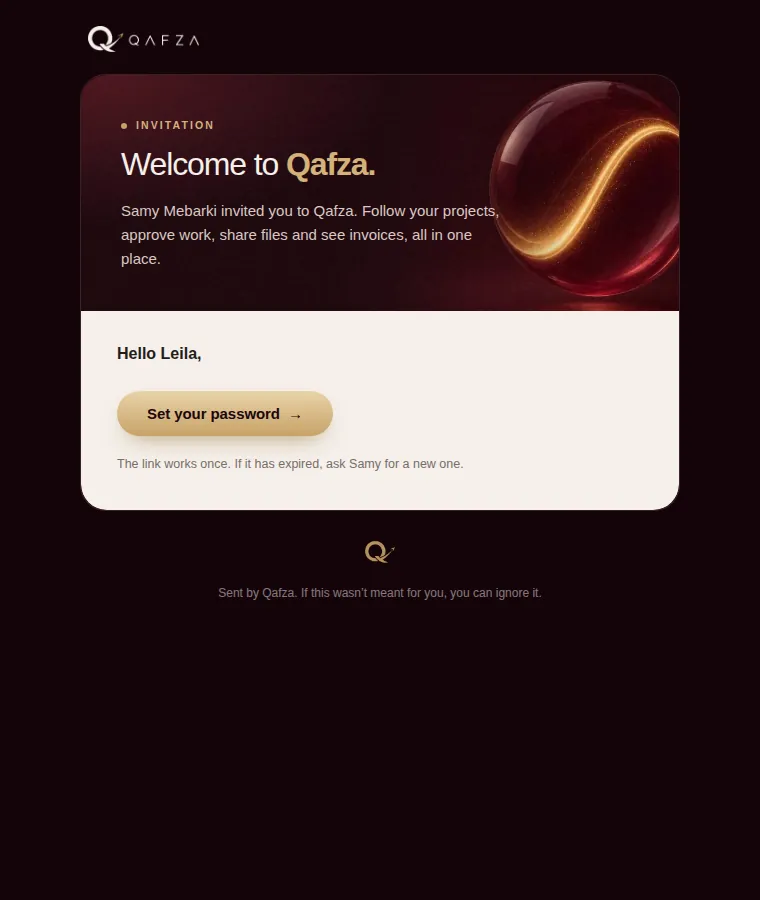
- Open the invitation email. It comes from Qafza, with the subject "… invited you to Qafza". If it isn't in your inbox, check spam or ask for the link on WhatsApp: the person who invited you can copy it.
- Press "Set your password". The link signs you in once. Choose a password of at least 10 characters.
- You land on your home page. From now on, sign in at app.qafza.dev with your email and that password.
Forgot your password? Ask your workspace owner to send you a new invite. It resets your password; nothing in your account changes.
Finding your way around
Every screen has the same frame: the dark panel on the left holds the navigation, the light sheet on the right holds your work. What you see in the menu depends on your role, so your menu may be shorter than this one.
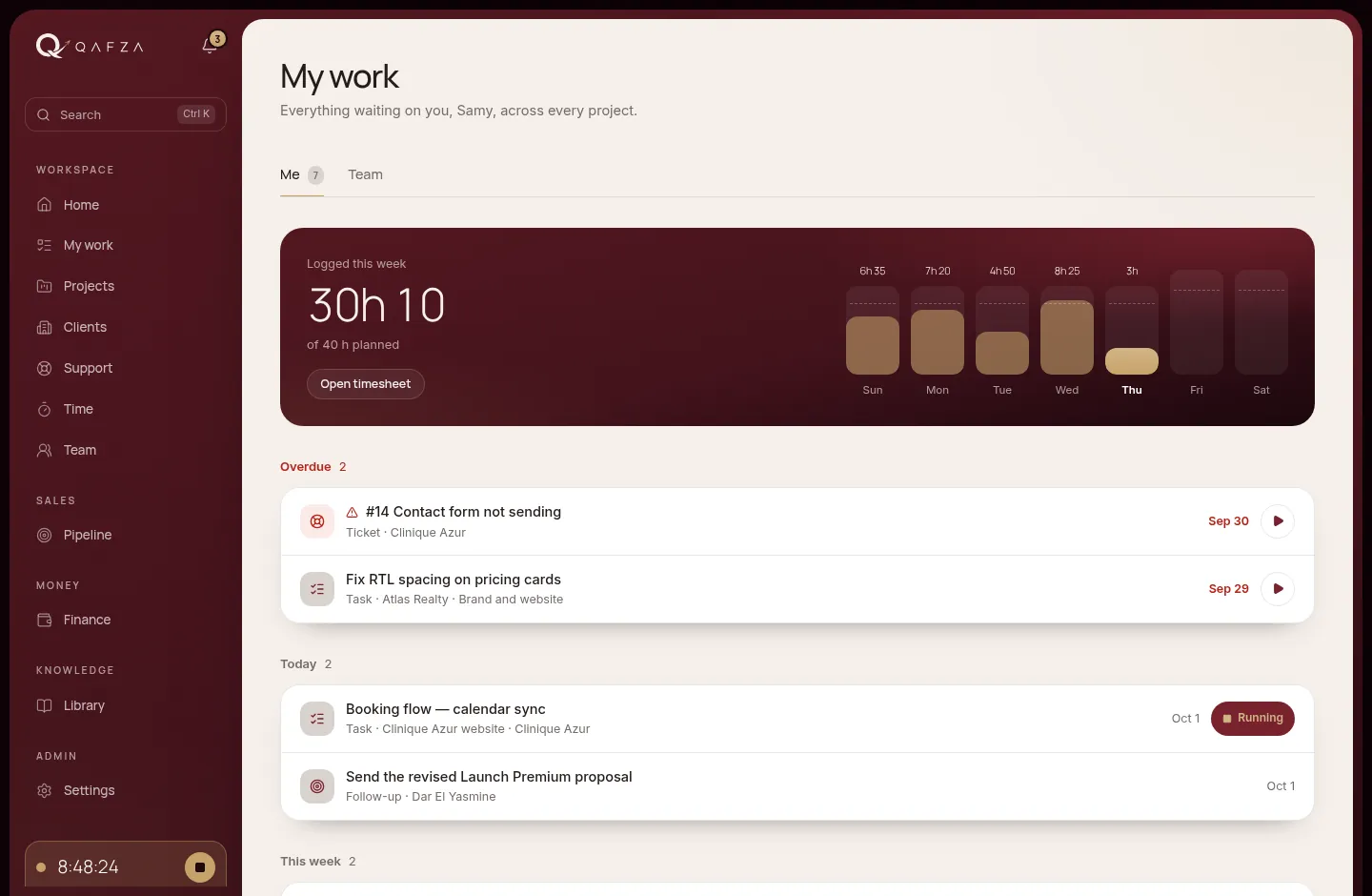
- Notifications. The bell shows a count when something new needs you. Details below.
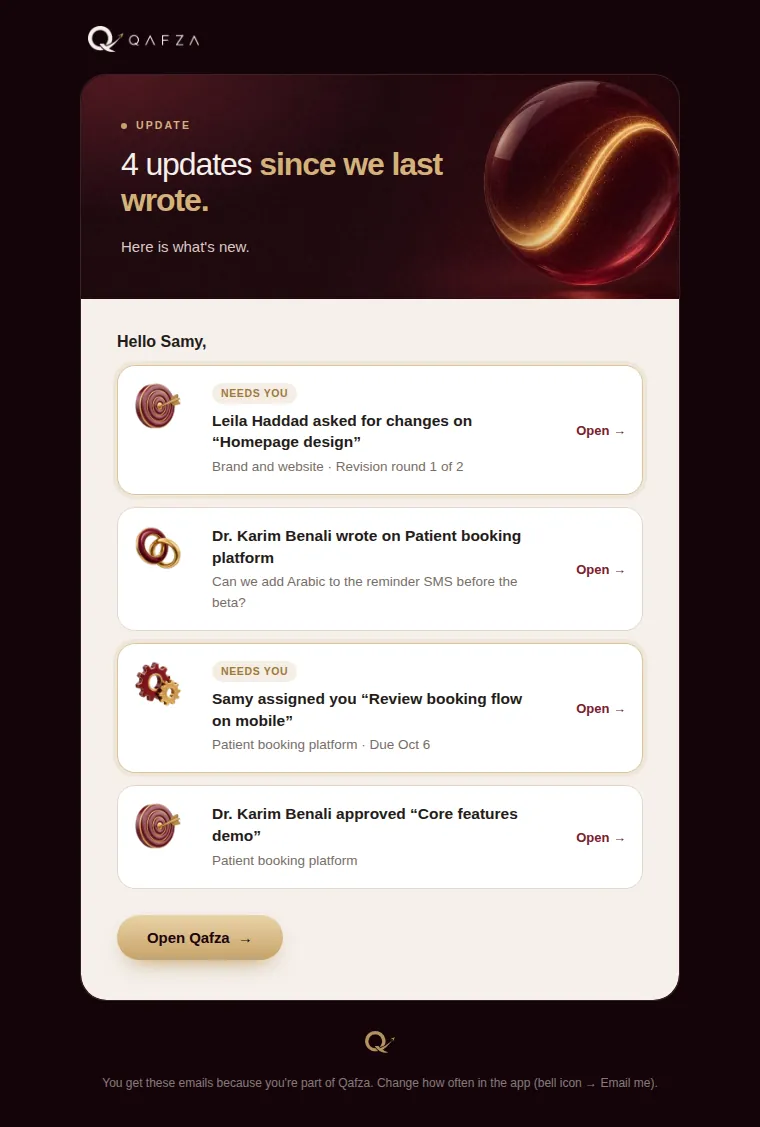
- Search. Jump to any project, client, task, ticket, lead or invoice. Ctrl K on Windows, ⌘ K on Mac.
- The menu. Grouped into Workspace, Sales, Money, Knowledge and Admin. You only see the groups your role allows.
- The running timer. Always visible while it runs, with a stop button. Your name, role, language and sign out sit just below.
- Play buttons start the timer on that task or ticket.
- Your week: hours logged per day against your planned hours.
Changing the language
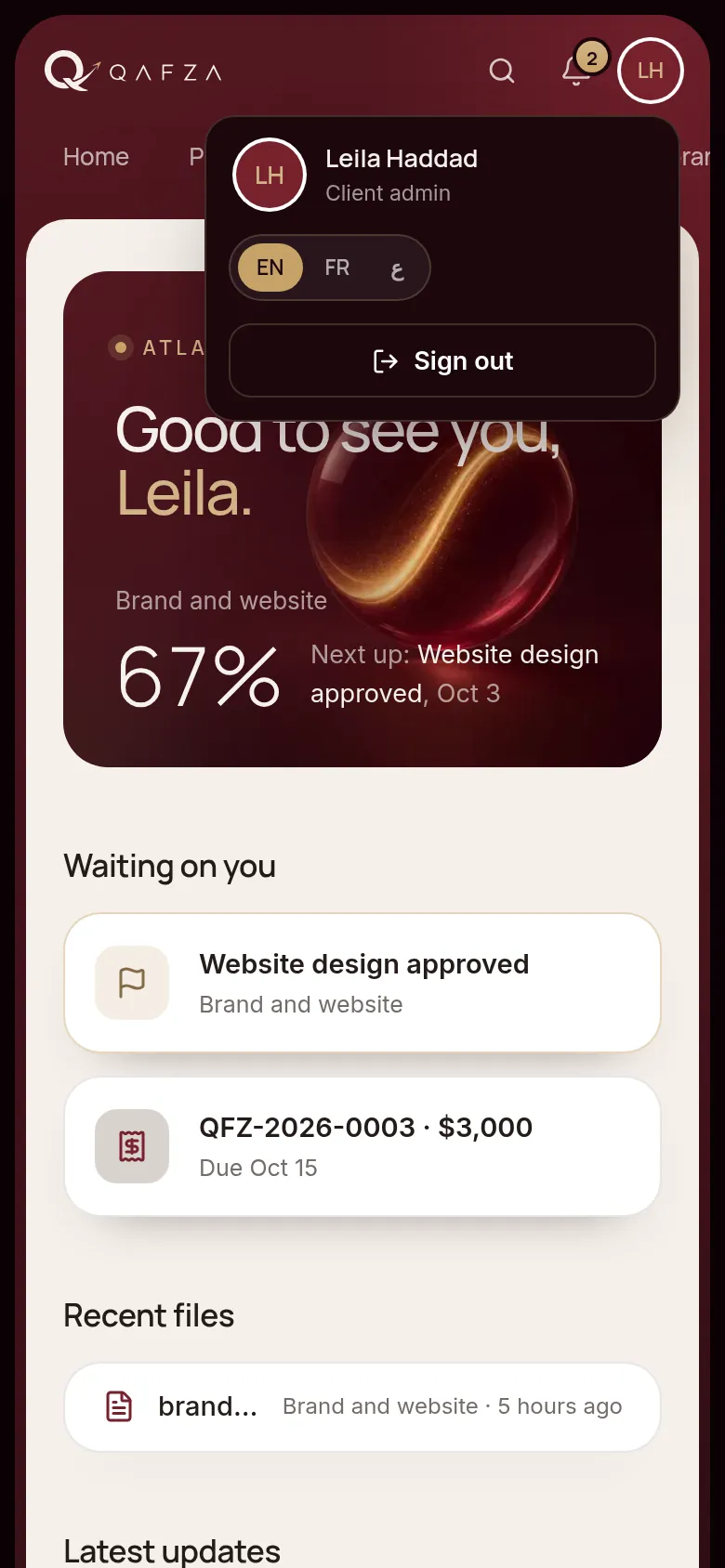
Qafza OS speaks English, French and Arabic. Switch with EN · FR · ع at the bottom of the sidebar, or in the menu under your initials on a phone. Arabic turns the whole layout right to left. Your choice is remembered on that device.
The phone app
Qafza OS installs on your phone's home screen like a normal app, with its own icon and full-screen view. There is nothing to download from a store.
Open app.qafza.dev in Safari, tap Share, then Add to Home Screen. Open Qafza from the new icon.
Open app.qafza.dev in Chrome, tap the ⋮ menu, then Install app (or Add to Home screen).
Notifications
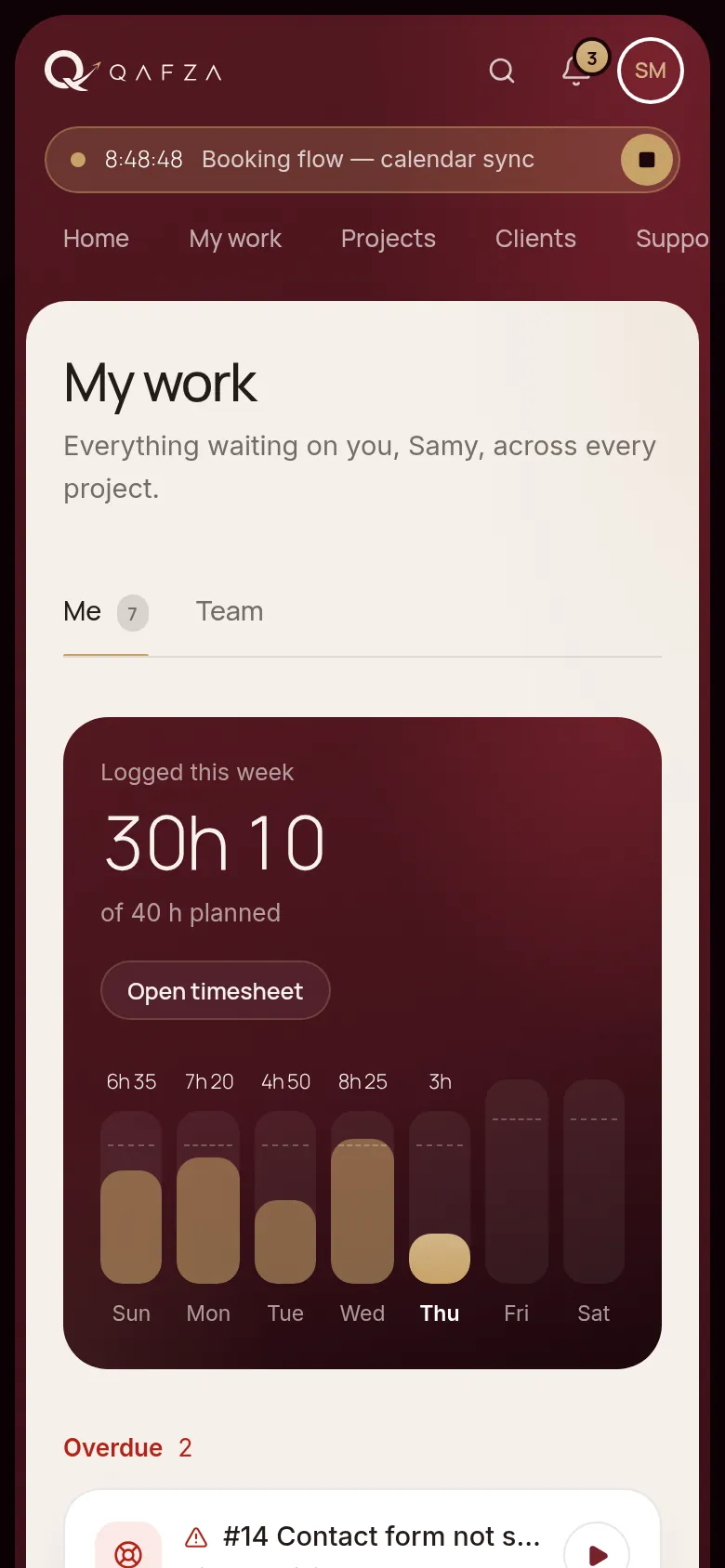
When something involves you, Qafza OS tells you in three places: the bell inside the app, an email, and a push notification on devices where you turn it on.
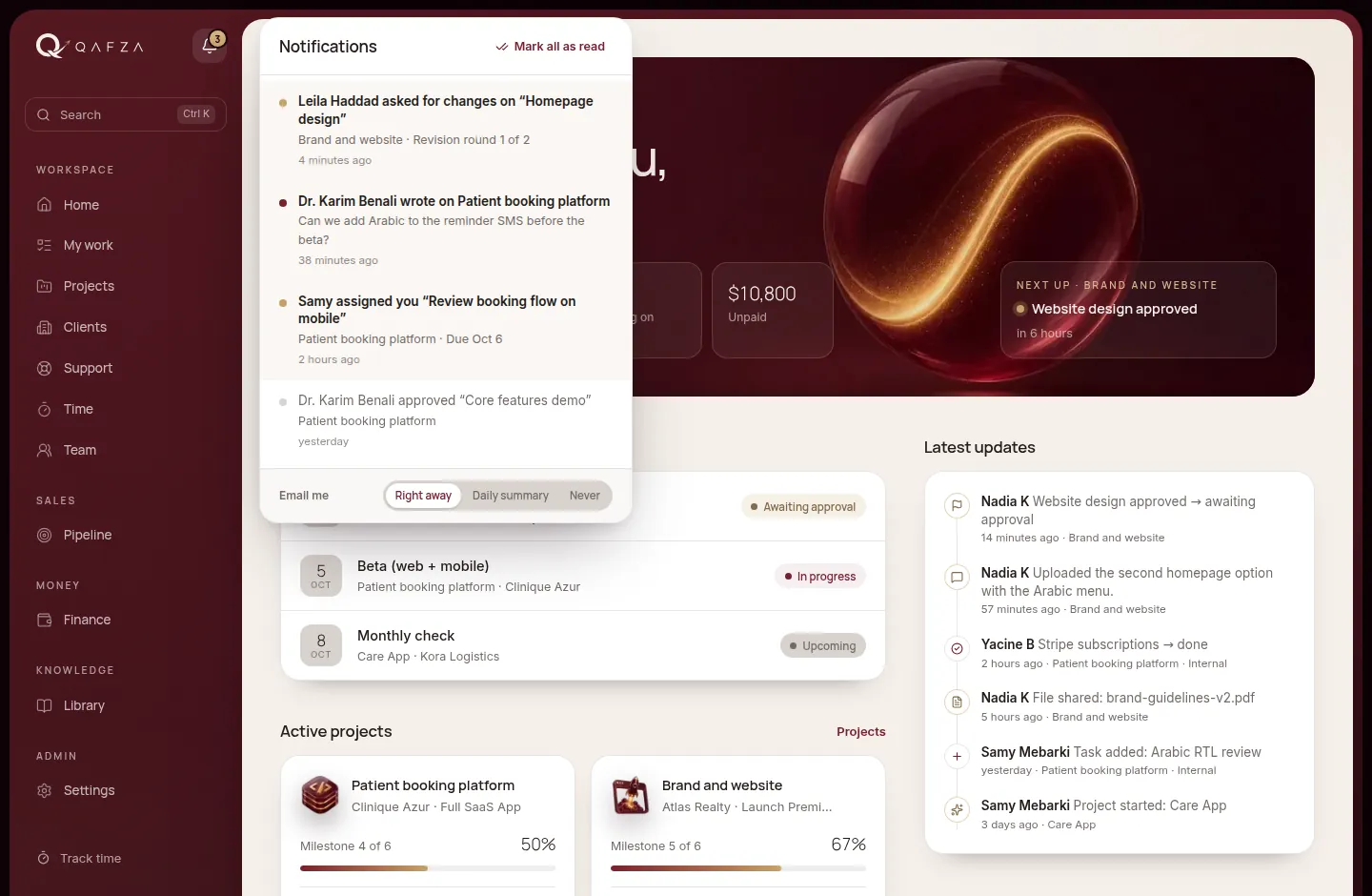
One email shortly after each event. Best for clients and anyone not in the app all day.
One email each morning at 08:00 (Algiers time) with everything from the day before.
Notifications stay in the bell only.
Change the email setting at the bottom of the bell panel. Below it, This device · Turn on enables push notifications on the phone or computer you're using. On iPhone, push only works from the installed app: add it to the Home Screen first.
Search
Press Ctrl K (⌘ K on Mac) anywhere, or tap the magnifier, and start typing. Results are grouped by projects, clients, tasks, tickets, leads and invoices, and only include what you are allowed to see. Use the arrow keys and Enter, or click. Type #14 to jump to ticket 14.
How it all fits together.

A client's whole life with Qafza runs through one system. Each step hands over to the next, so nothing is typed twice and nobody has to ask where things stand.
The client journey
- LeadA prospect is added with their need, value and next follow-up date.Sales · Pipeline
- ProposalScope, timeline and price, built from a package and sent as a link.Sales · Proposals
- SignedThe client signs online. The lead is won and the client is created.Client · online
- ProjectStarted from the package: phases, milestones, checklist and payment schedule.Manager · Projects
- OnboardingThe client answers the onboarding form for that service.Client · Home
- DeliveryTasks, time and files move the work forward. Updates keep the client informed.Team · Project
- ApprovalThe client approves each milestone or asks for changes (2 rounds per stage).Client · Project
- Invoice and CareMilestones become invoices. After launch, Care plans and support tickets.Finance · Support
Internal by default
Clients log into the same system as the team, so one rule protects everyone: everything starts internal. A task, an update or a file reaches the client only when someone sets it to Visible to client. Money and private notes never reach the wrong person, because the database itself refuses to show them.
What each side sees
Team only
- Tasks, updates and files left as Internal
- Internal notes on tickets and on clients
- Project fees, cost rates and profit (finance roles)
- Time entries and team workload
- The sales pipeline and proposals (sales roles)
Client sees
- Their own projects, milestones and progress
- Tasks, updates and files marked Visible to client
- Approvals, change request quotes and onboarding
- Their invoices (client admins)
- Their support requests and Care plan hours
For the team.

Your day starts in My work and ends with your hours logged. In between, the project pages hold everything: tasks, milestones, client conversation, files and changes.
Home
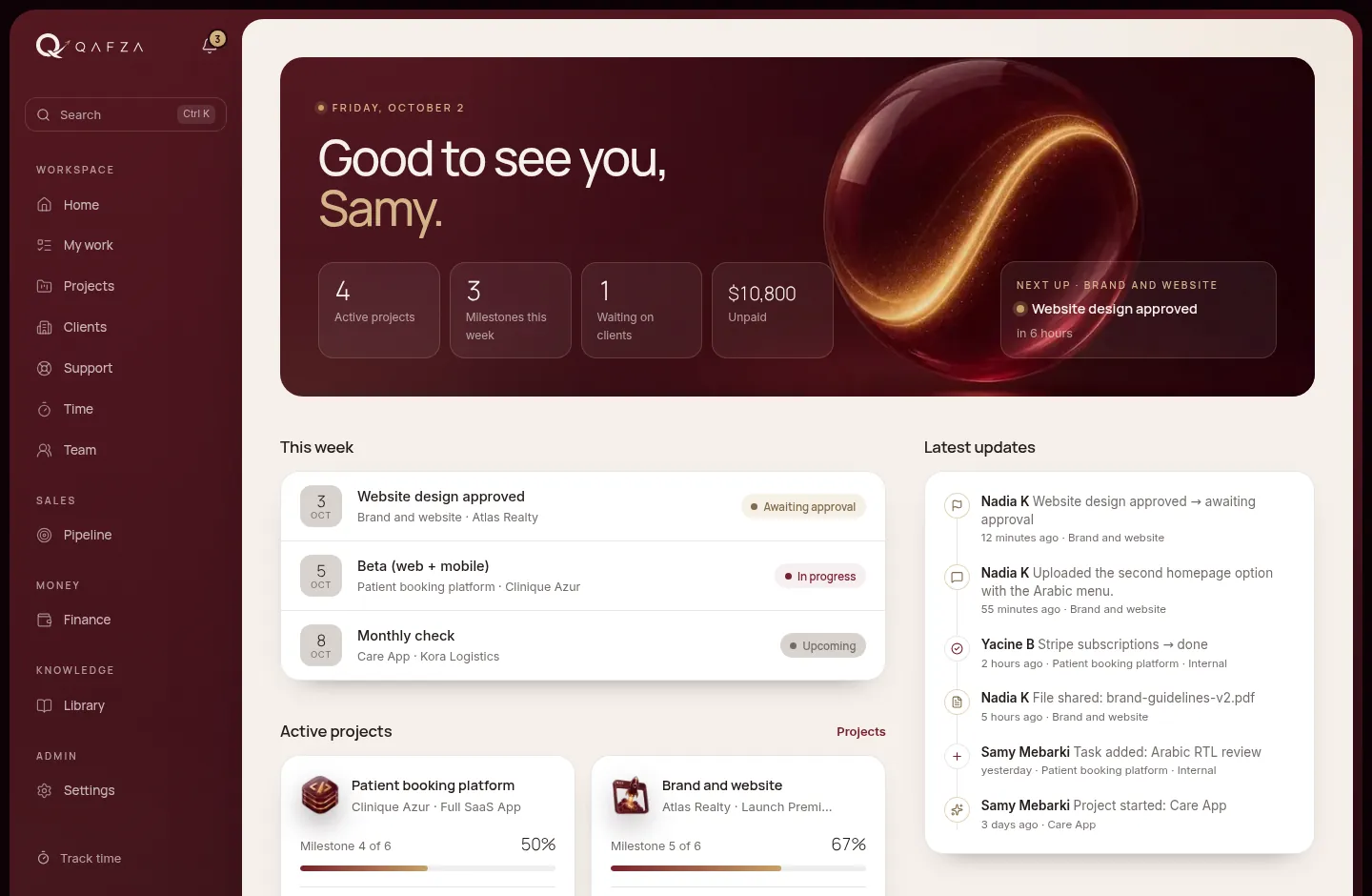
Home is the team's shared dashboard: active projects, milestones due this week, what's waiting on clients, unpaid totals (finance roles) and the live feed of everything happening across projects.
My work
My work lists everything assigned to you across every project, sorted into Overdue, Today, This week and Later: your tasks, the tickets you own, sales follow-ups and, for managers, milestones waiting on a client. The band at the top shows the hours you've logged each day this week against your planned hours.
- Start with Overdue. Red dates are late. Open the item, or press play to start working on it.
- Press ▶ to start the timer on a task or ticket. A task in To do moves to In progress automatically.
- Stop the timer from the sidebar (or the bar at the top on a phone). The time is logged to that task and its project.
Projects
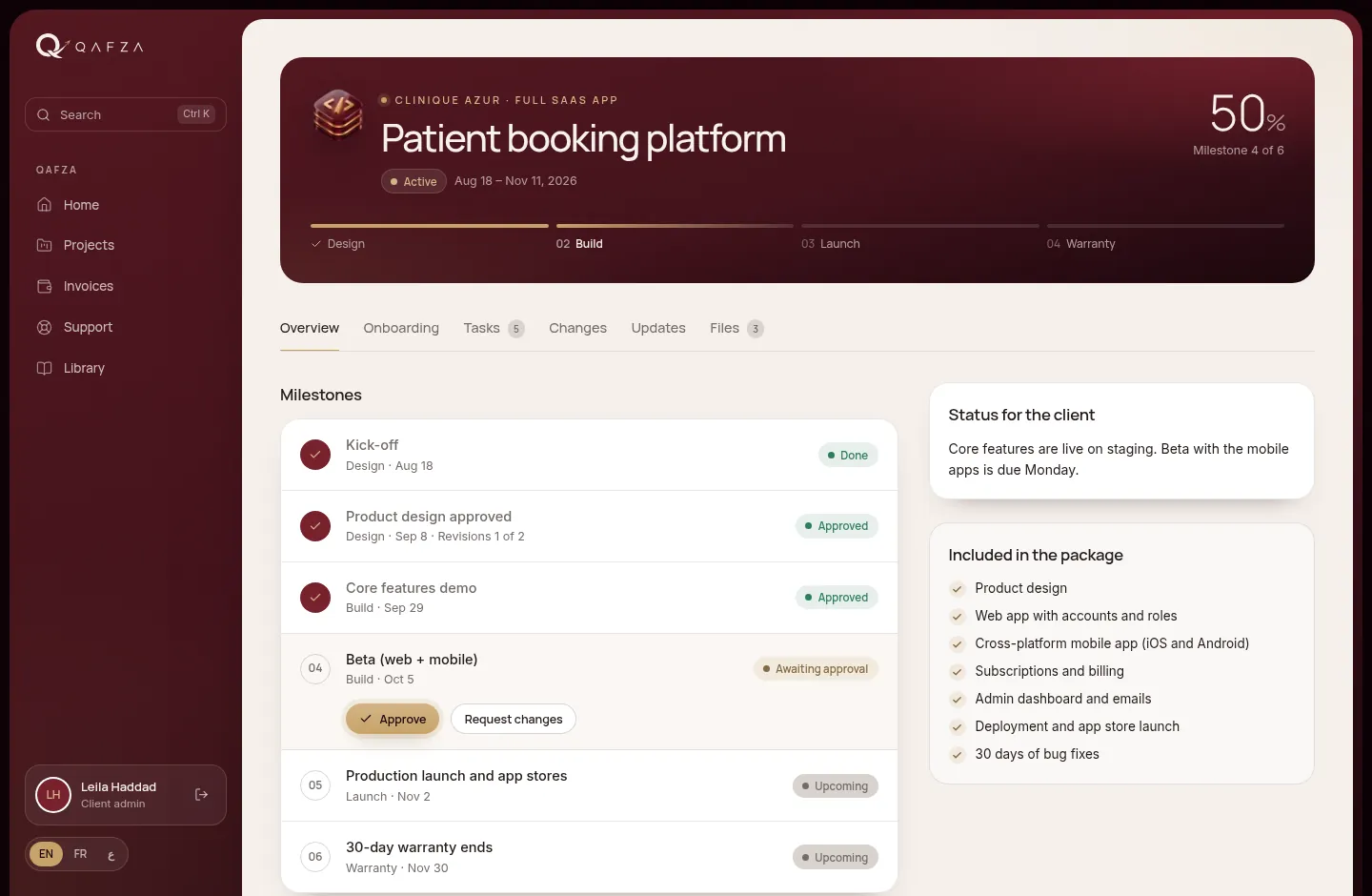
Every project starts from a package (Launch Premium, Full SaaS App, Care App…). The package fills in the phases, milestones with their invoice percentages, the checklist of what's included, and the number of revision rounds. Managers create projects from Projects → New project, or from a won lead with Start the project.
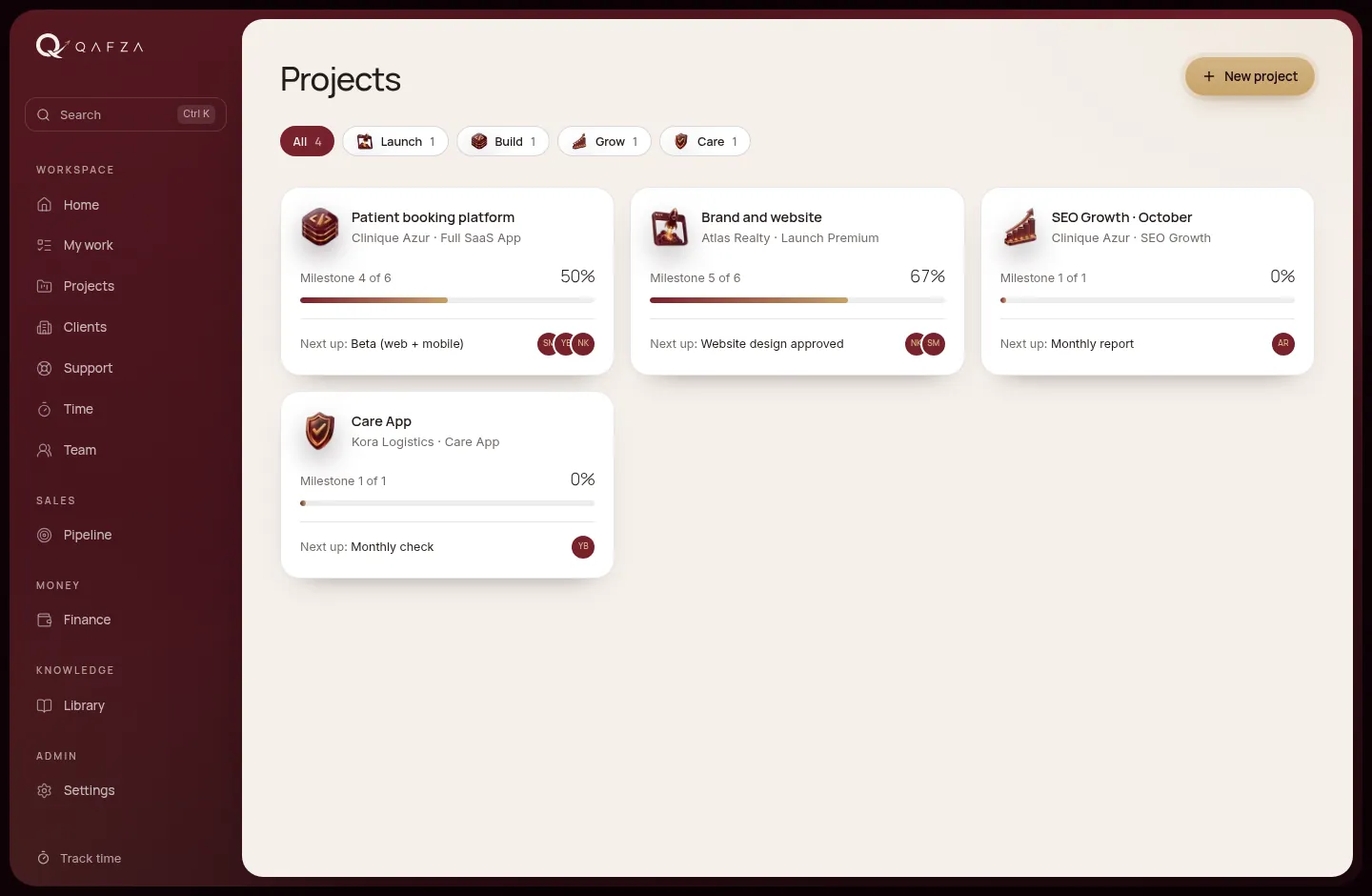
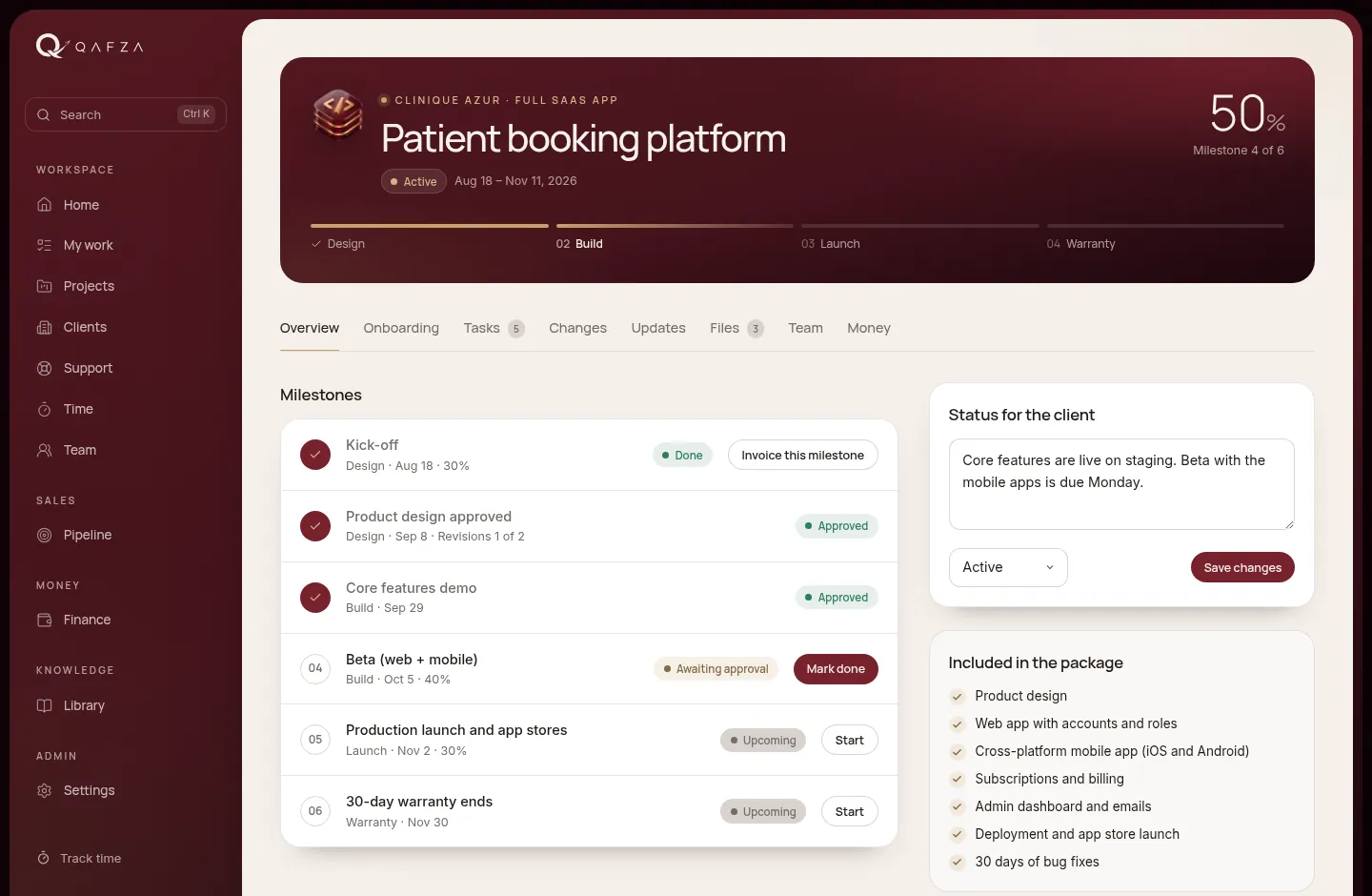
Open a project to see its workspace. The header shows the phase track, the client, dates and progress; the tabs hold the rest:
| Tab | What's there | Who sees it |
|---|---|---|
| Overview | Milestones and approvals, the status line for the client, what's included in the package | Everyone on the project |
| Onboarding | The client's onboarding answers, or the form waiting to be filled | Everyone on the project |
| Tasks | The task board in five columns | Team; clients see client-visible tasks |
| Changes | Change requests, quotes and decisions | Everyone; prices for client, managers and finance |
| Updates | The conversation and the live feed | Team sees all; client sees client updates |
| Files | Deliverables and shared files | Team sees all; client sees client files |
| Team | Who works on the project | Team |
| Money | Fee, invoices per milestone, payments and profit | Finance roles |
Tasks
The task board has five columns: To do In progress In review Waiting on client Done. Change a task's column with its status menu.
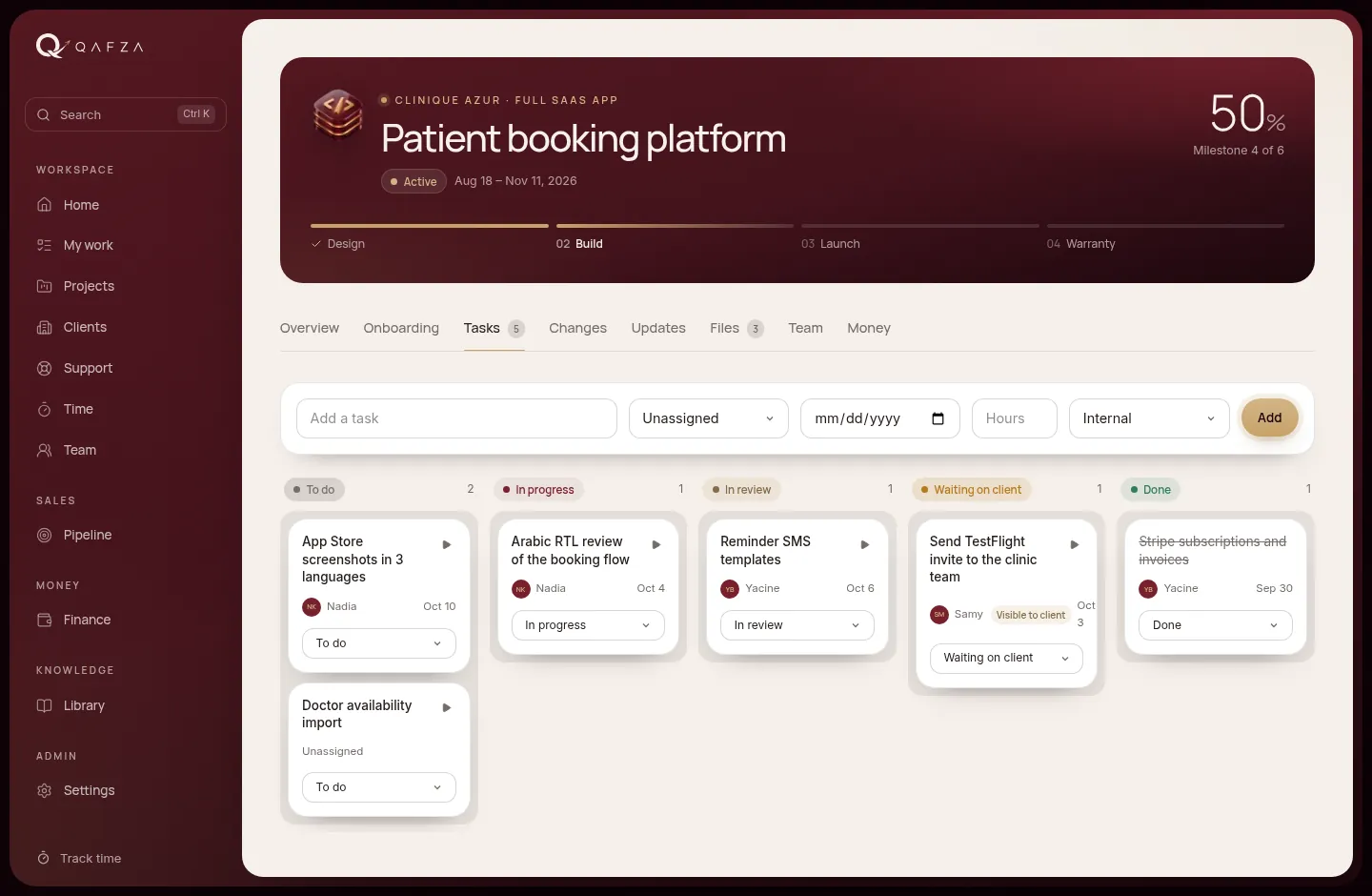
Always add an estimate. "4" means four hours. Without estimates, the workload view can't tell who is overloaded.
Leave tasks Internal unless the client should follow them. Freelancers only ever see the tasks assigned to them.
Milestones and client approvals
Milestones are the checkpoints the client signs off. Each one moves through the same steps. When the work is ready, a manager presses Send for approval and the client is notified.
A milestone's life
Updates and files
The Updates tab is the project's conversation. Write an update, choose Internal or Visible to client, and post. System events (a milestone approved, a file shared) appear in the same live feed.
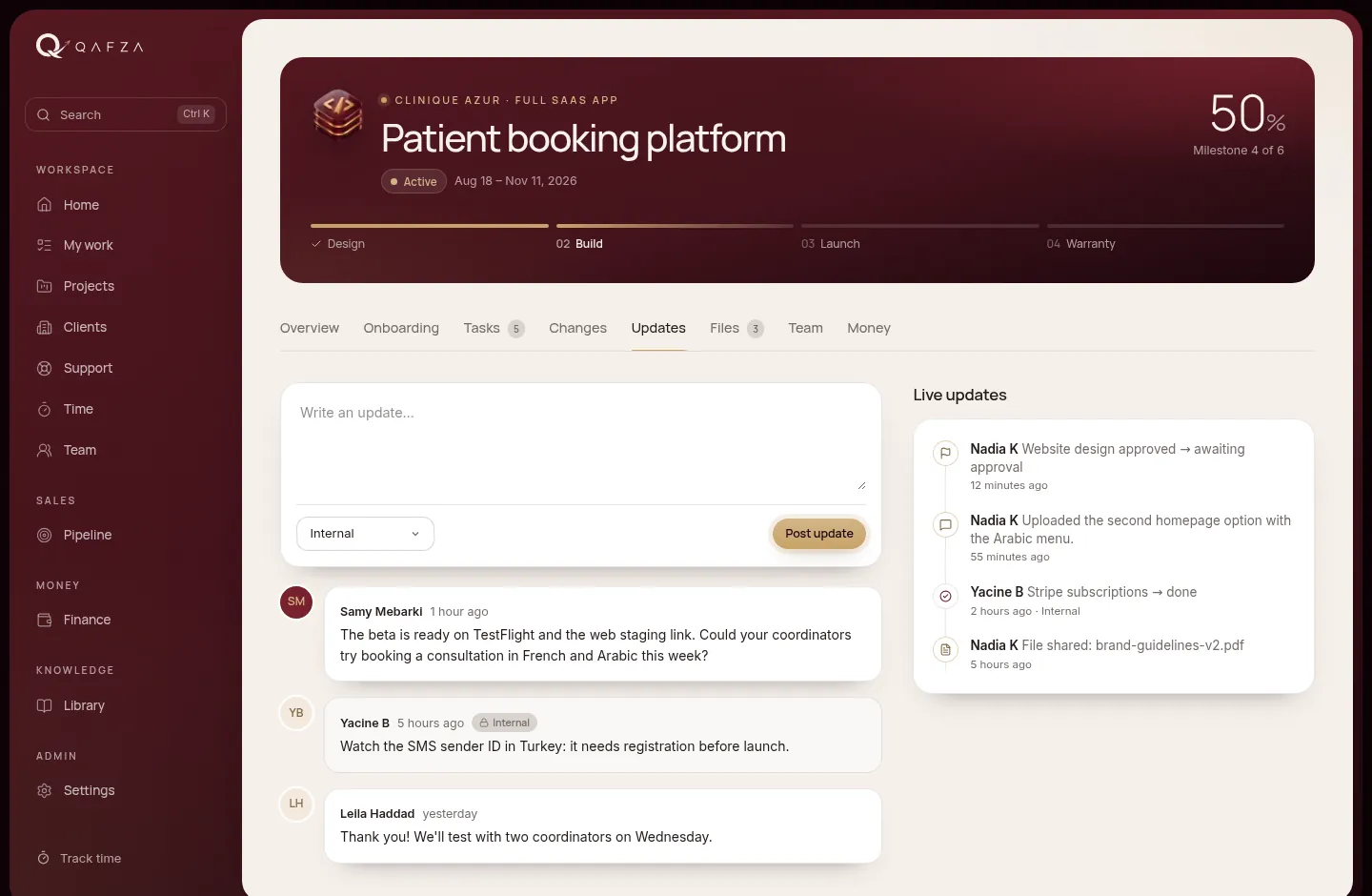
In Files, upload deliverables straight from your computer. Each file is internal or visible to the client, and everyone with access can download it. Never upload passwords or patient records: share access through a password manager instead.
Change requests
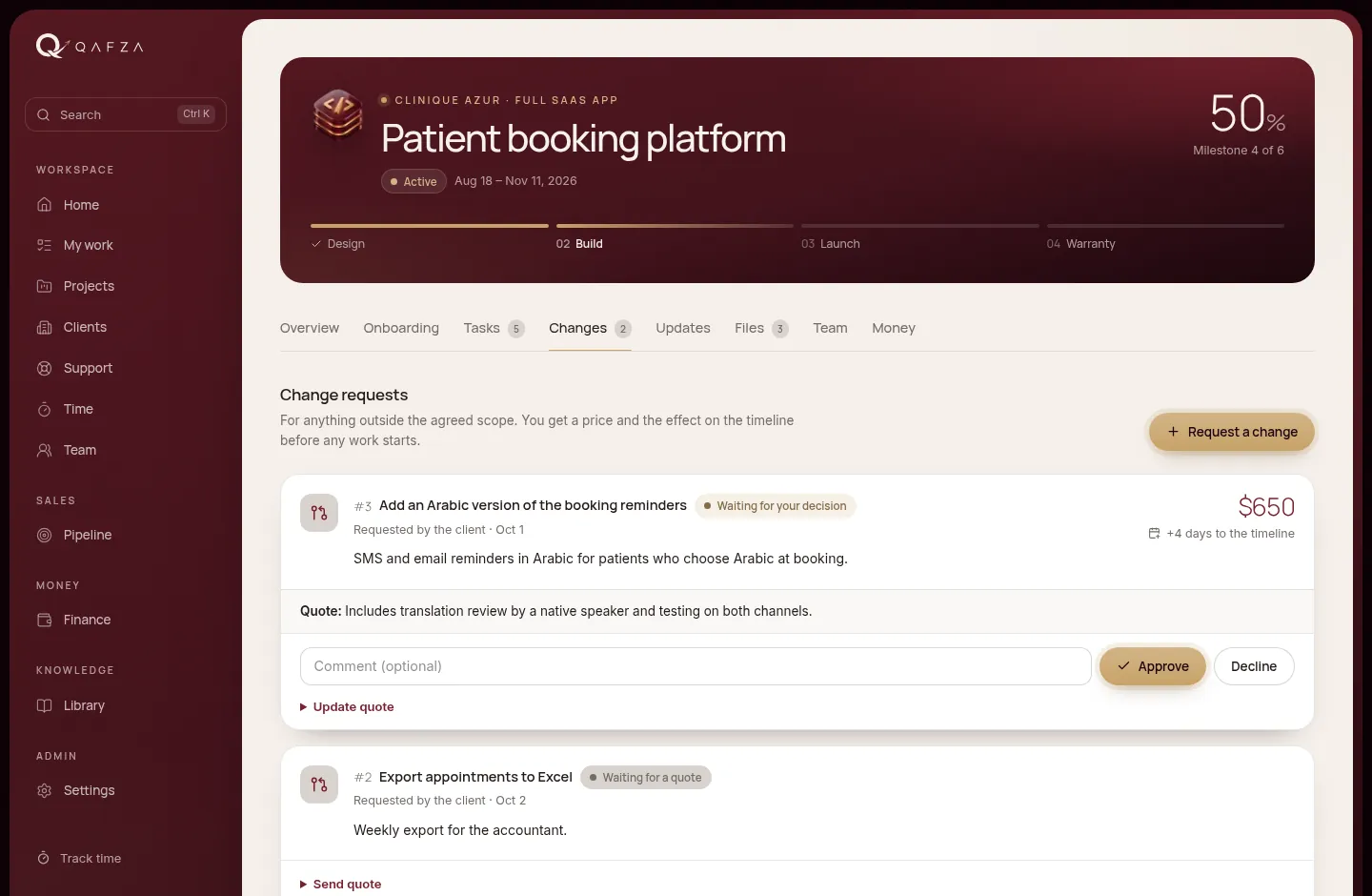
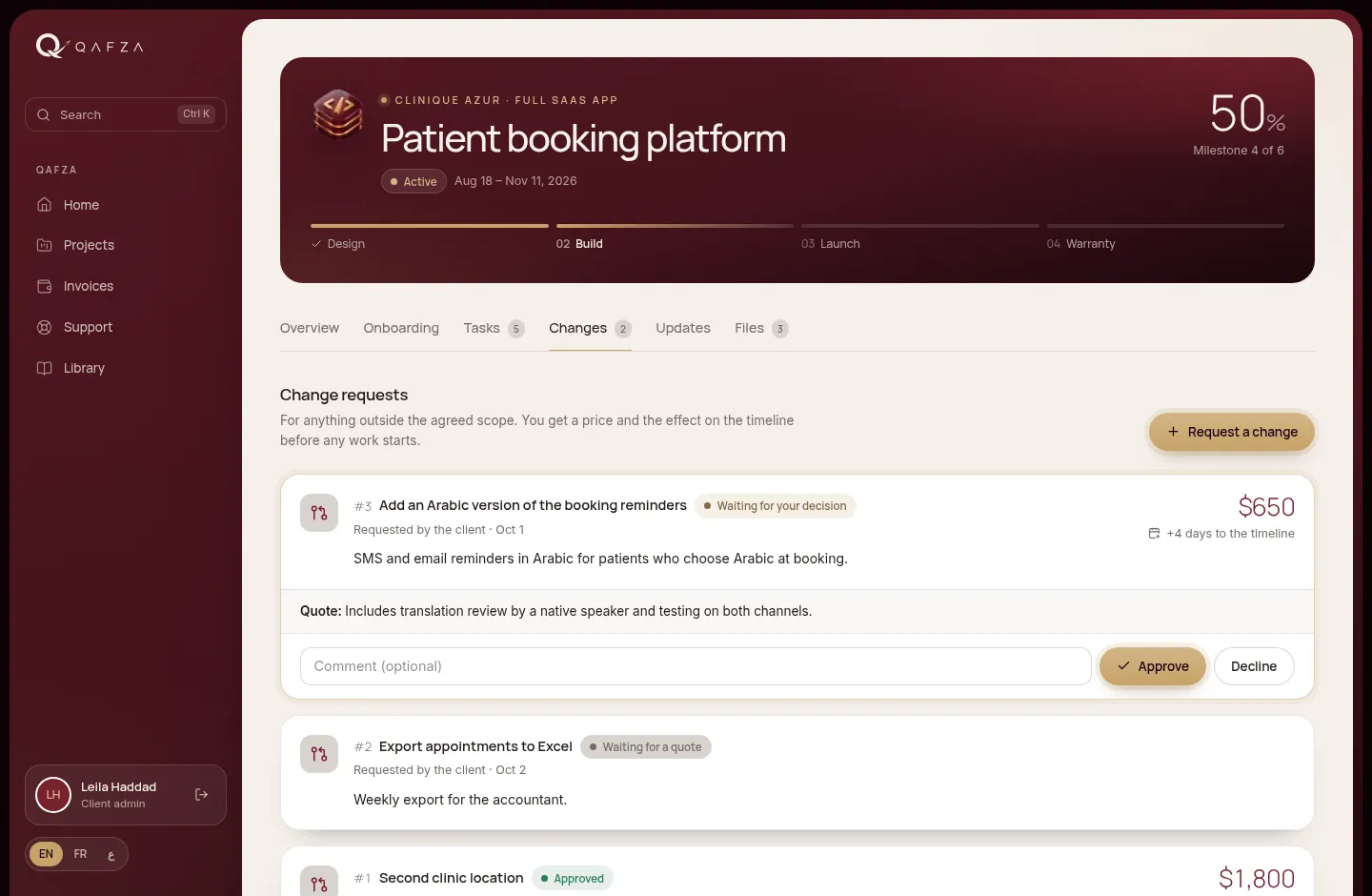
Anything outside the agreed scope goes through a change request, so the client always sees the price and the effect on the deadline before any work starts.
From request to invoice
Support tickets
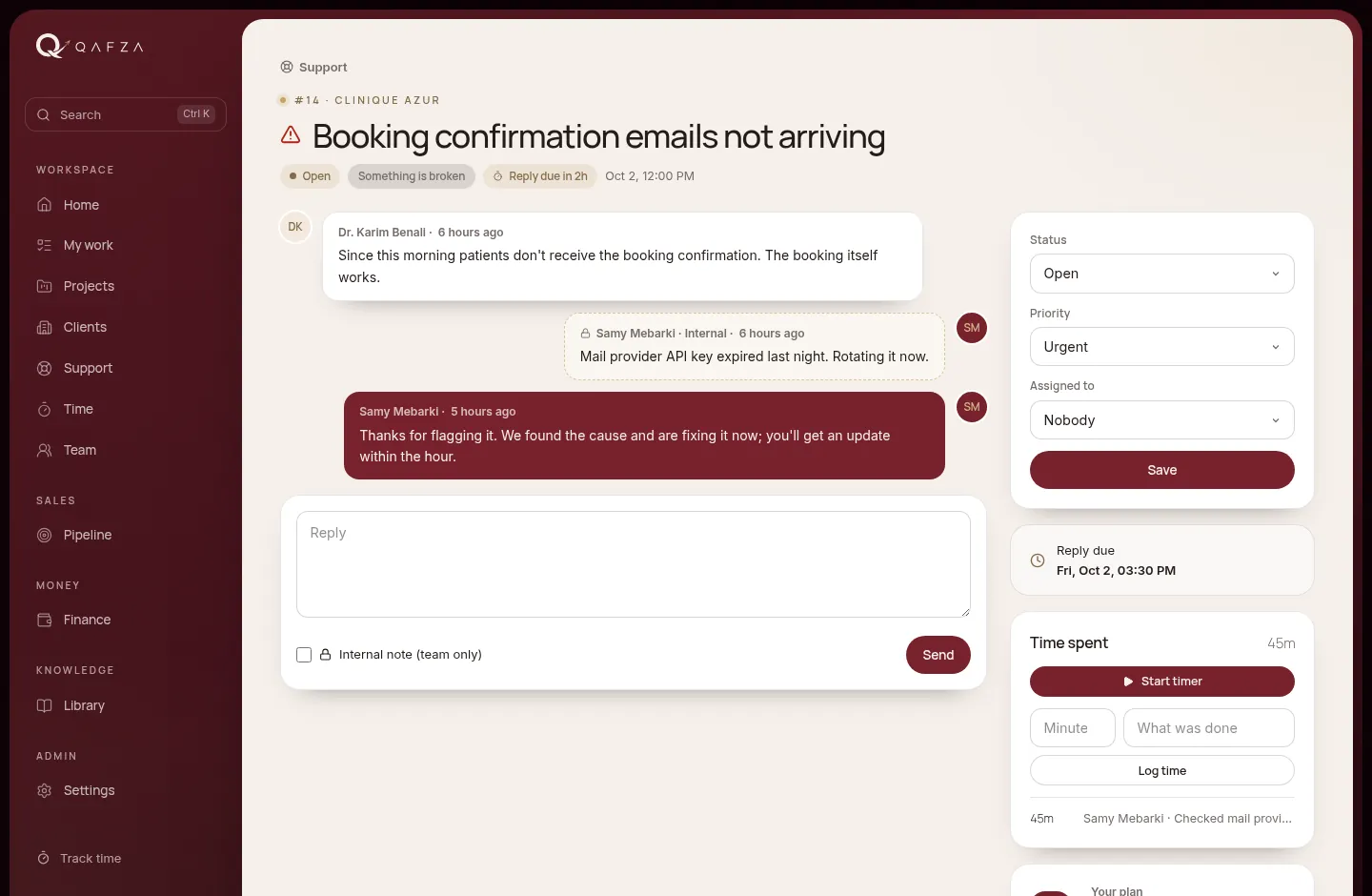
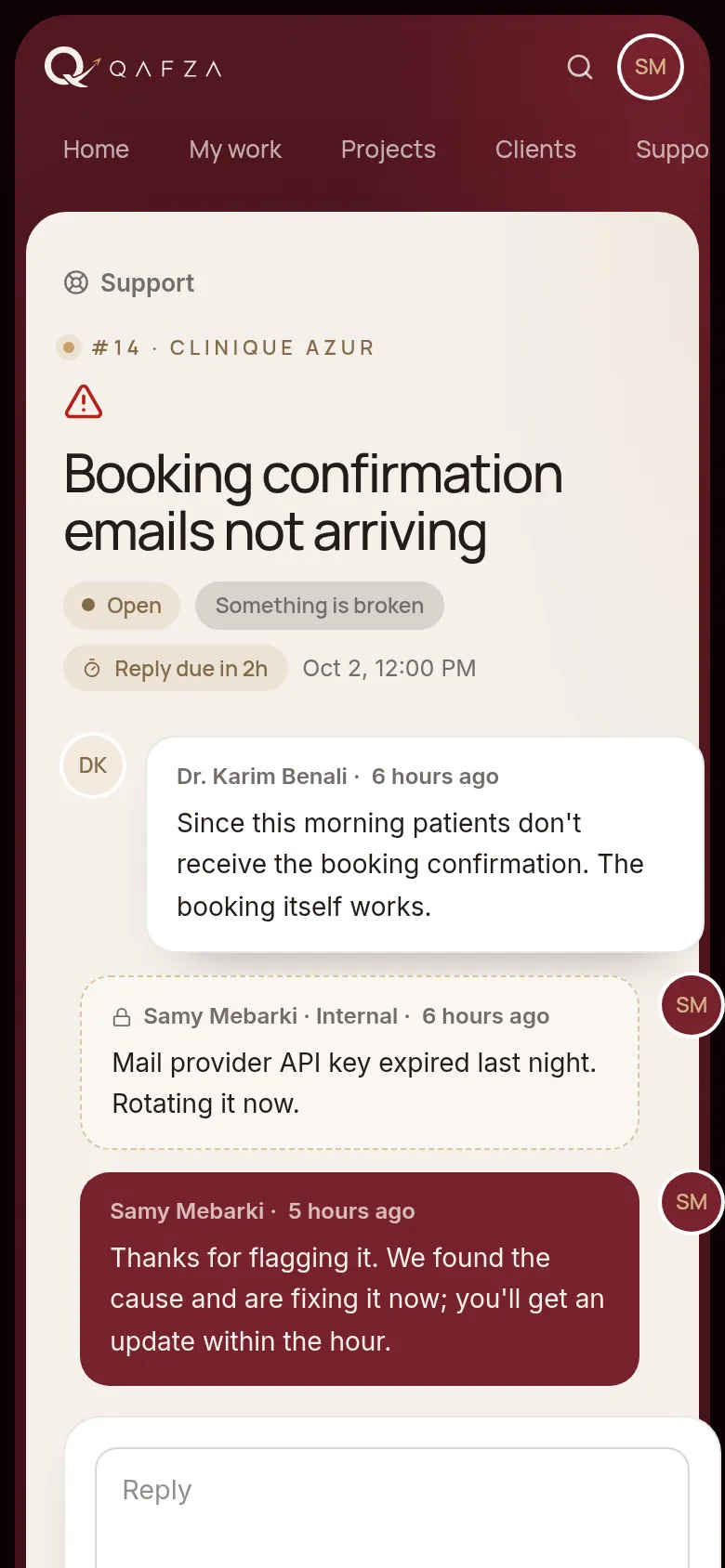
After launch, clients send requests from Support. Each ticket carries a reply deadline from the client's Care plan, counted in working days (Sunday to Thursday, Algiers time): Care Site 2 days, Care App 1 day, Care Priority the same day. Urgent tickets are always due the same day.
| Timer chip | Meaning |
|---|---|
| Reply due in 1d 6h | No reply yet, deadline comfortable |
| Reply due in 2h | Less than four hours left |
| Reply overdue by 5h | The deadline has passed |
| Answered | The first public reply was sent; the clock stops |
Time tracking
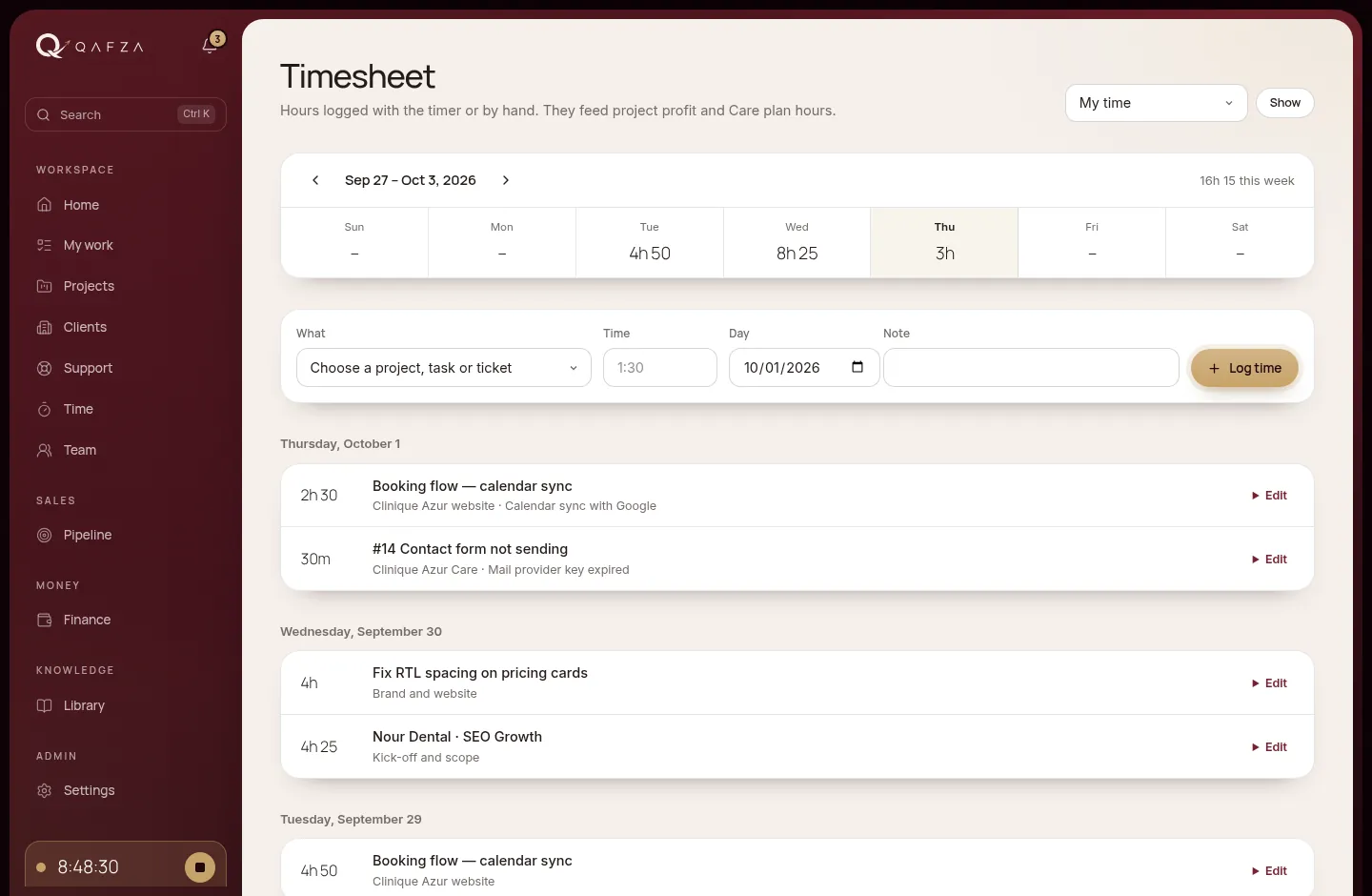
Hours feed two things: the client's Care plan usage and each project's profit. There are two ways to log them.
Press ▶ on a task (board or My work) or Start timer on a ticket. Stop it from the sidebar. Starting a new timer stops the previous one.
Open Time, choose a task, project or ticket, type the time (1:30, 45m or 2h), the day and a note, then Log time.
Team workload
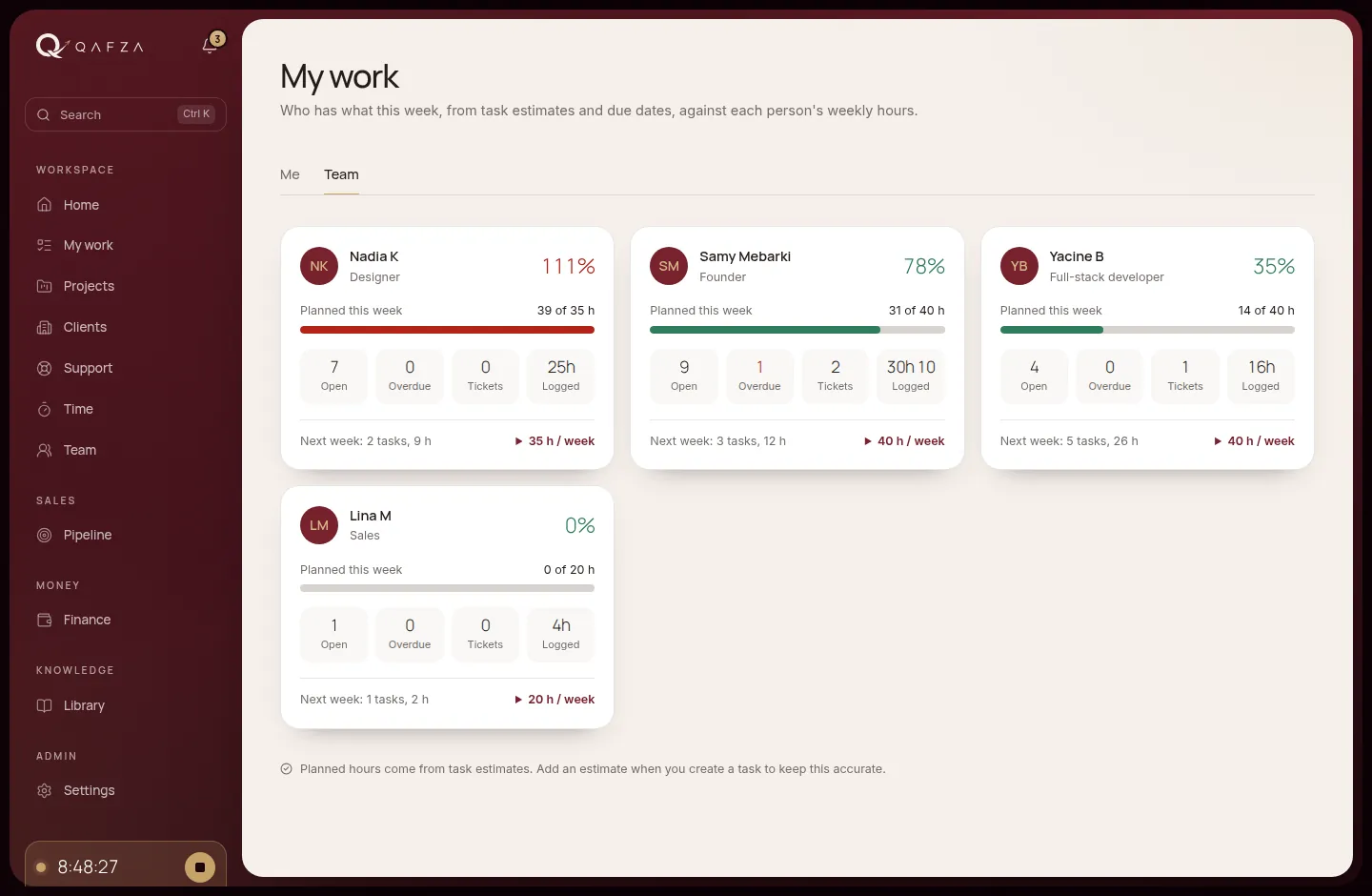
Managers open My work → Team to see, for each person, the hours planned this week (from task estimates) against their weekly hours. Over 100% turns red. Each card also shows open and overdue tasks, tickets, hours logged and next week's load. Change someone's weekly hours with the link at the bottom of their card.
For clients.

Your client space shows where your project stands, what's waiting on you, every file we share and every invoice, in English, French or Arabic. You never have to ask for an update.
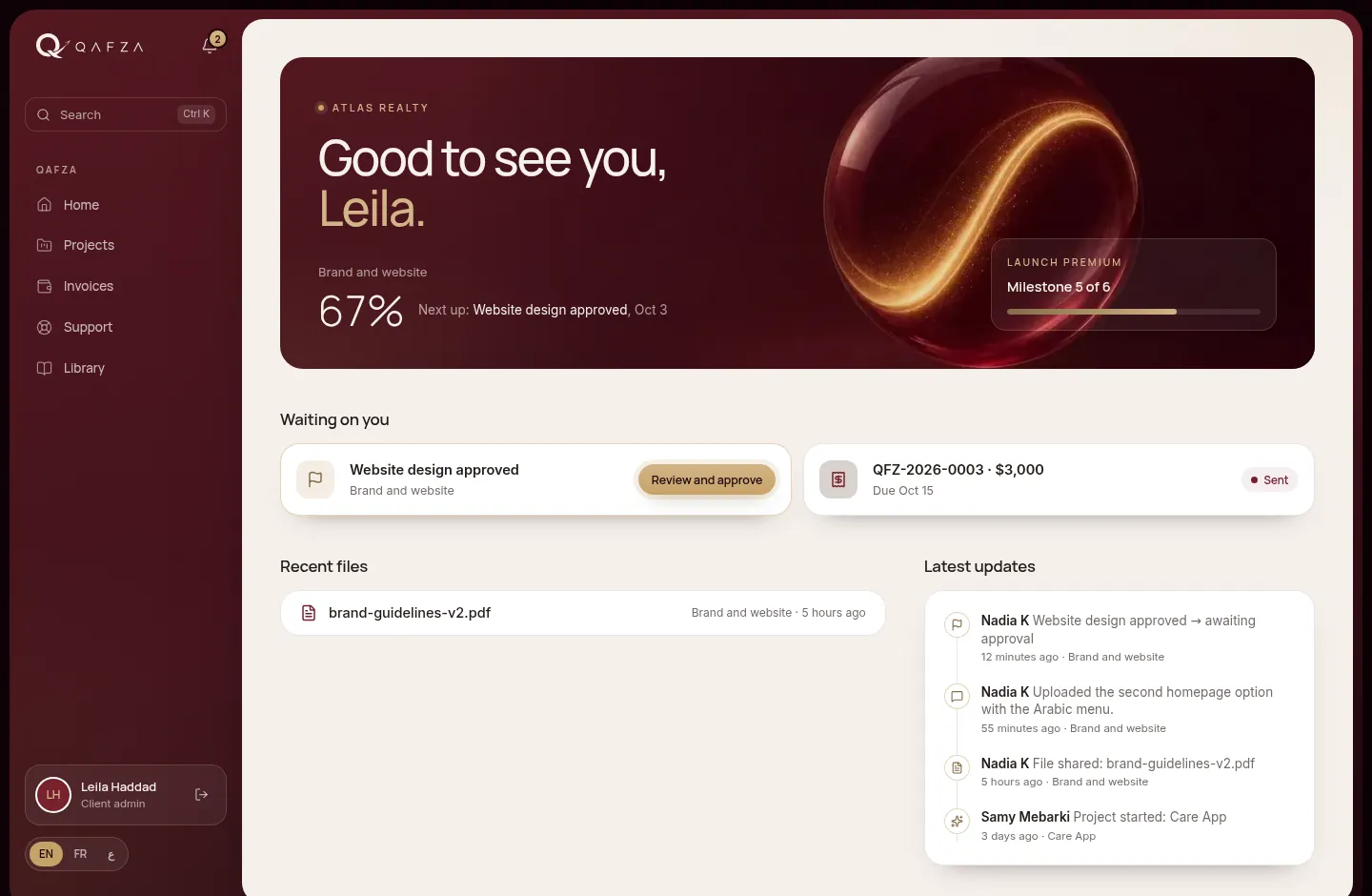
Your home
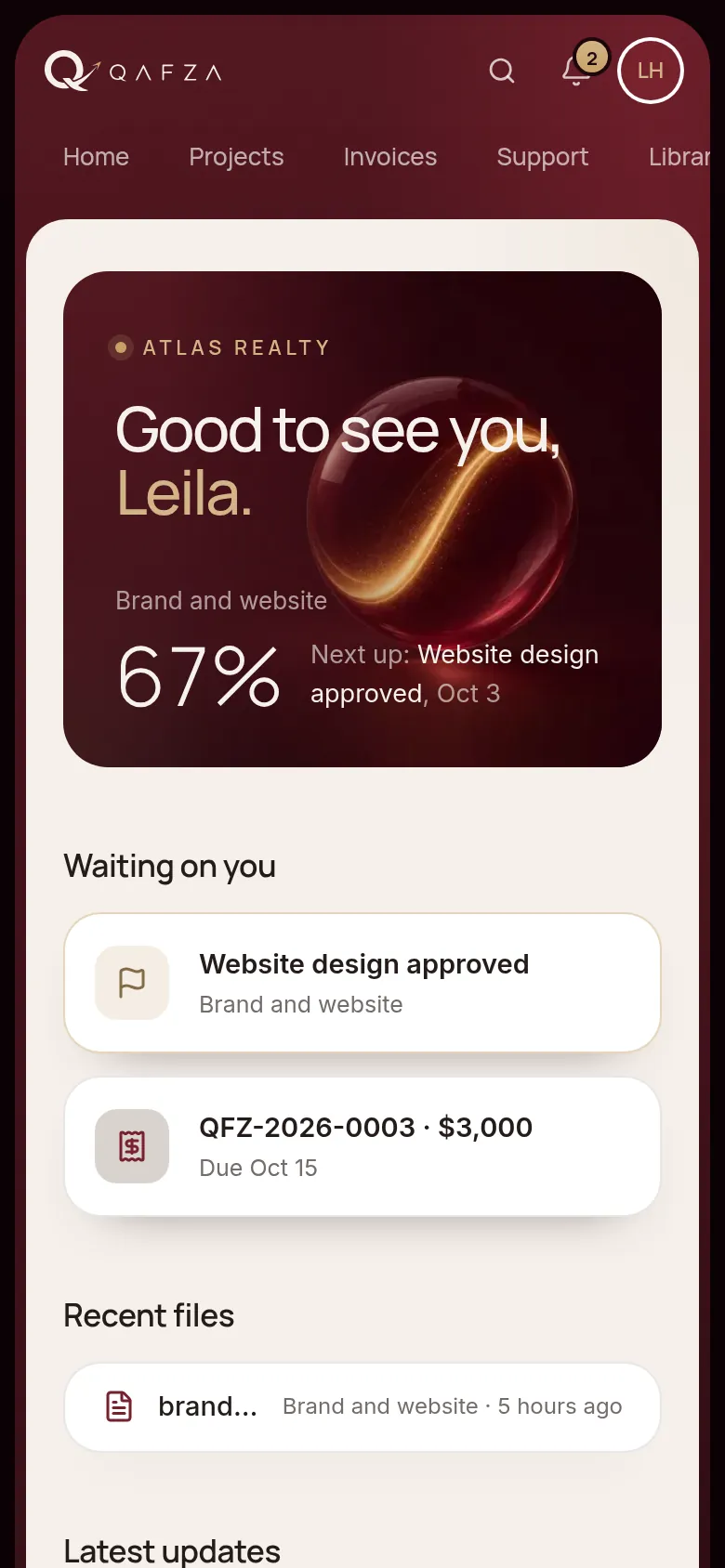
Your home opens on your project's progress and its next milestone. Waiting on you lists exactly what we need from you: an approval, an onboarding form, a change to decide on or an invoice to pay. Below are the latest files and updates.
The onboarding form
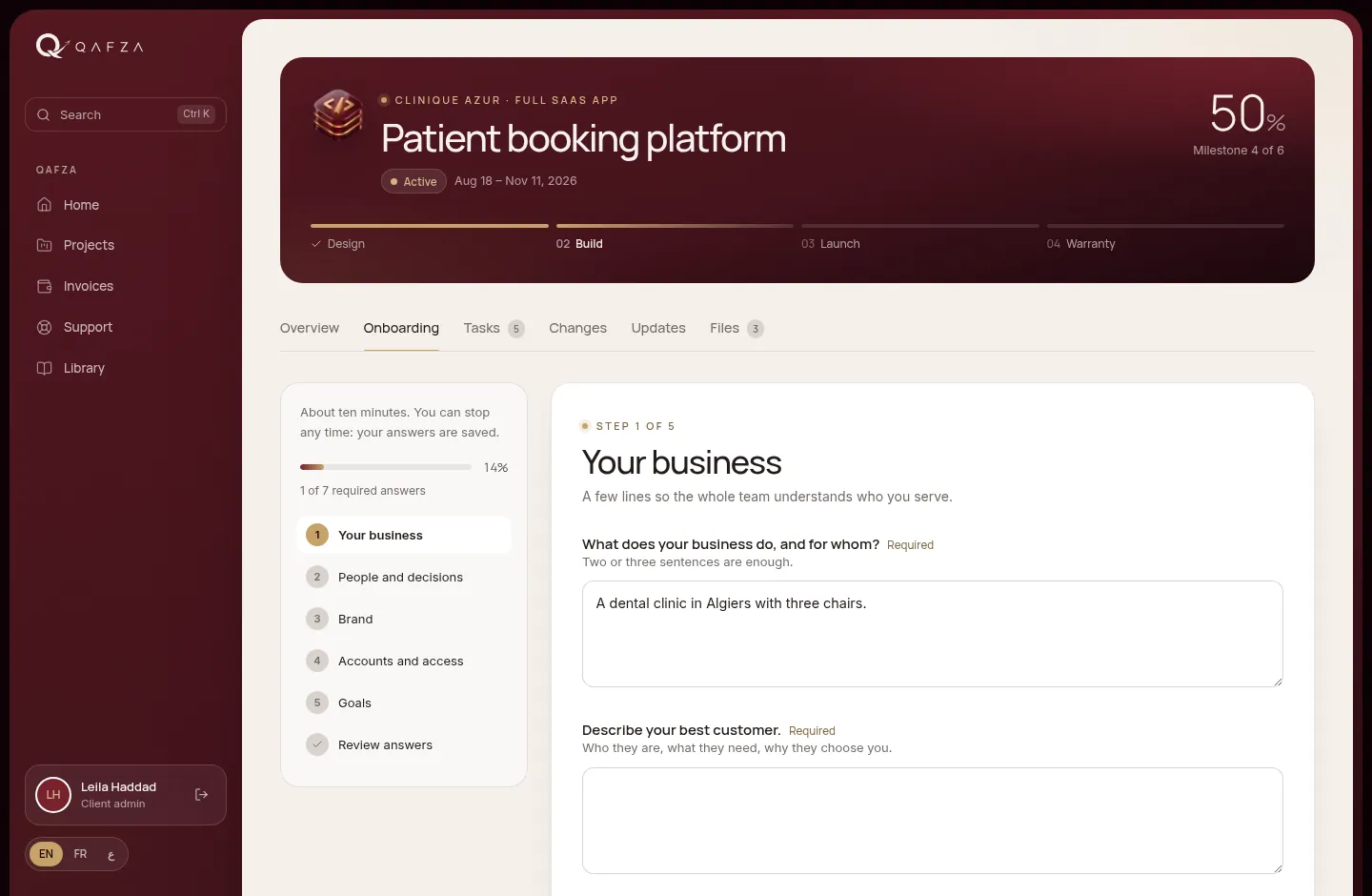
At the start of a project you get a short form for your service: your business, your audience, your brand, the people who approve work, and the accounts we need. It takes about ten minutes.
- Press Start on the onboarding card on your home page.
- Answer step by step. Every answer saves as you go, so you can stop and come back. Questions marked Required must be answered.
- Upload files where asked: logos, brand guides, photos.
- Review and send. The team is notified and can read your answers at any time.
Never type a password into the form. For accounts, choose how we get access: invite our team email, share through a password manager, or hand it over at kick-off. The form warns you if an answer looks like a password.
Approving work
When a milestone is ready you get an email and a card on your home page. Open it, review the work and the files, then choose:
The milestone is signed off and the project moves to the next step.
Write what should change. Each stage includes 2 rounds of changes.
Asking for something new
For anything outside the agreed scope, open your project's Changes tab and press Request a change. We reply with a price and the effect on the timeline. Nothing starts until you press Approve.
Invoices
Client admins see Invoices in their menu: every invoice with its status and balance. Open one to read it, print it or save it as a PDF. Payment terms and bank details are printed on the invoice.
Getting help
Open Support → New request, say what you need and pick a type: something broken, a small change, a content update, a question. Tick Urgent only if your site or app is down or unusable. You'll see when to expect our first reply, and how many of your Care plan's hours are used this month.
Sales, from first call to signature.

The pipeline keeps every prospect, every conversation and every follow-up date in one place. Proposals go out as a link the client signs online, and a signature turns the lead into a client.
The pipeline
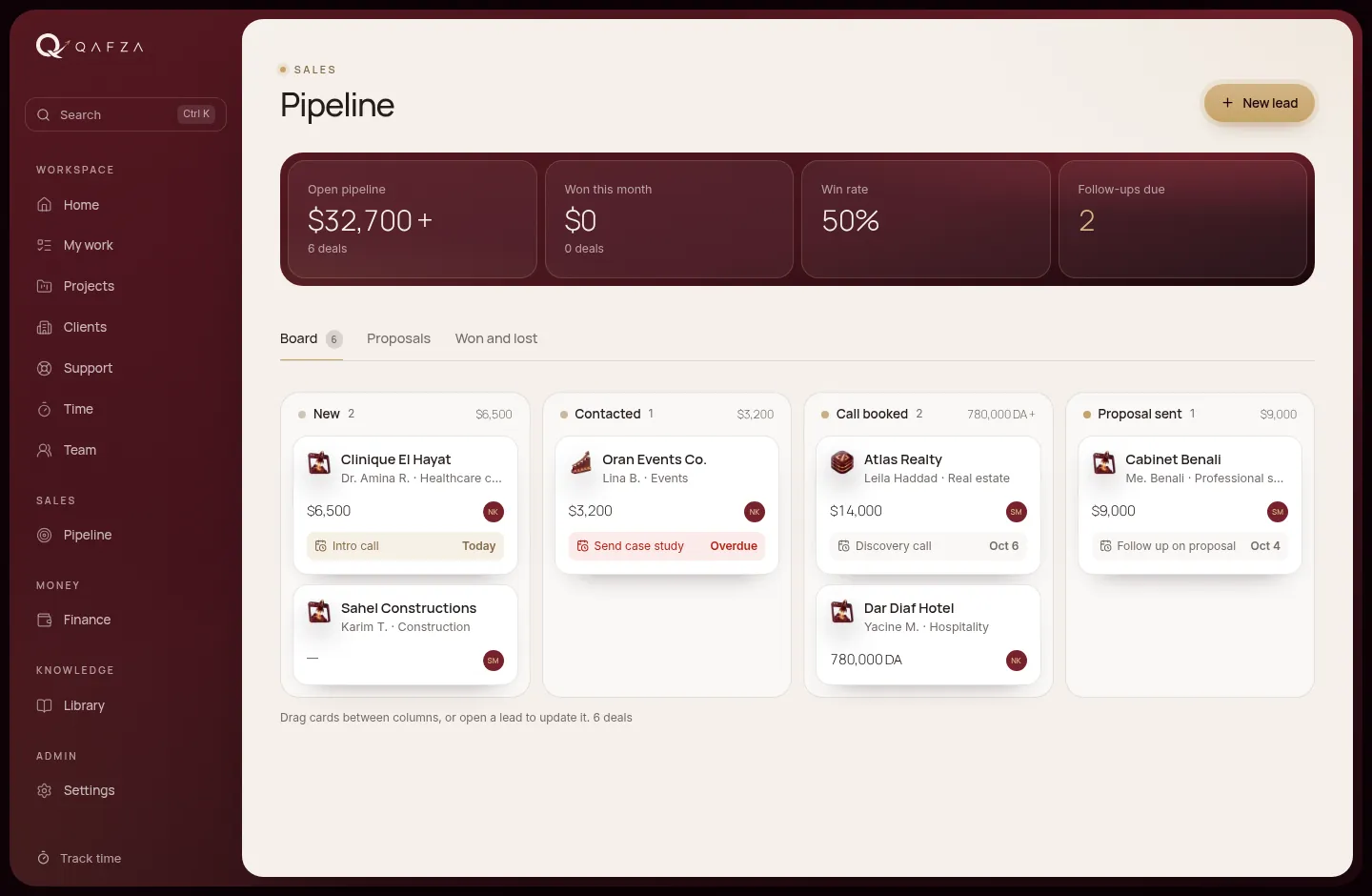
Leads move through five stages: New Contacted Call booked Proposal sent and finally Won or Lost. Drag a card to another column, or open the lead to update it. The bar on top shows open pipeline value, deals won this month, win rate and follow-ups due.
A lead's page
Everything about one prospect: contact details with a WhatsApp button, sector, source, estimated value, package and owner. The timeline keeps notes, calls, emails and meetings. Always set the next step and its date, so nothing falls through.
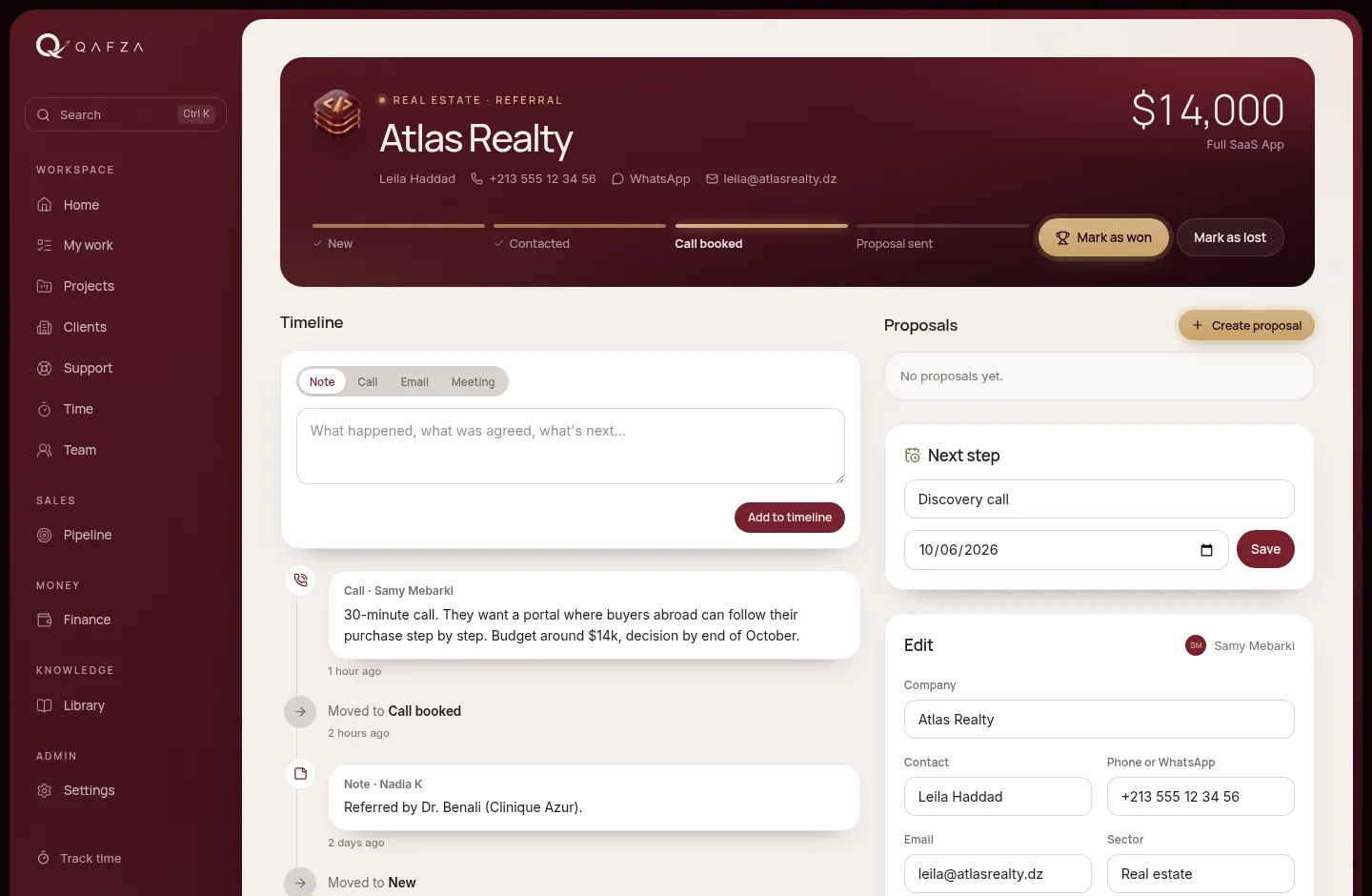
When the deal closes, press Mark as won. Qafza OS creates the client (or reuses an existing one) and offers Start the project with the right package already chosen. Mark as lost asks for the reason, which feeds the win rate.
Proposals
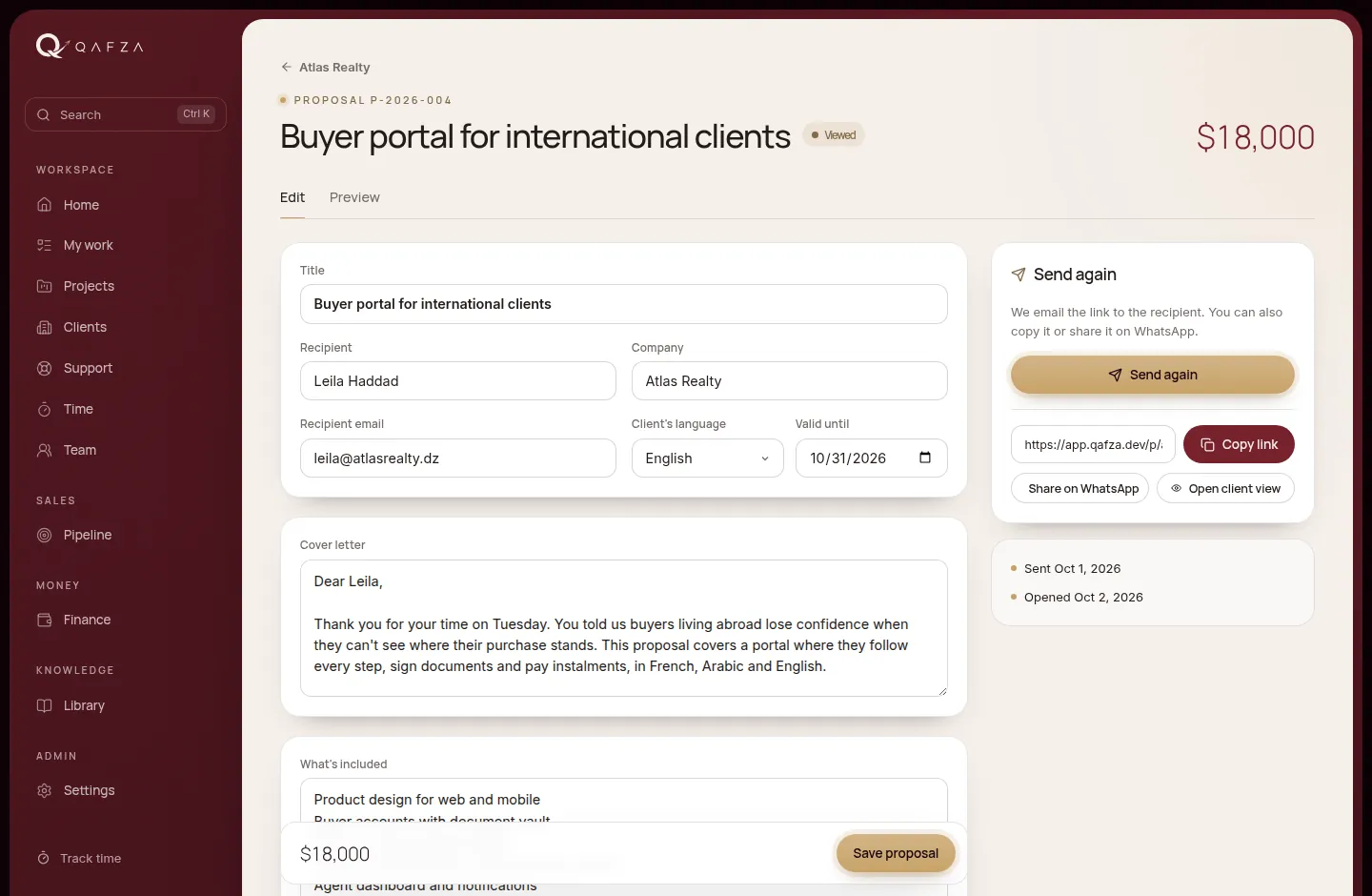
- Create the proposal from the lead. The scope, timeline, payment schedule and revision rounds come from the package.
- Edit the cover letter, scope and prices in the client's language (EN, FR or AR). A warning appears if the payment schedule doesn't add up to 100%.
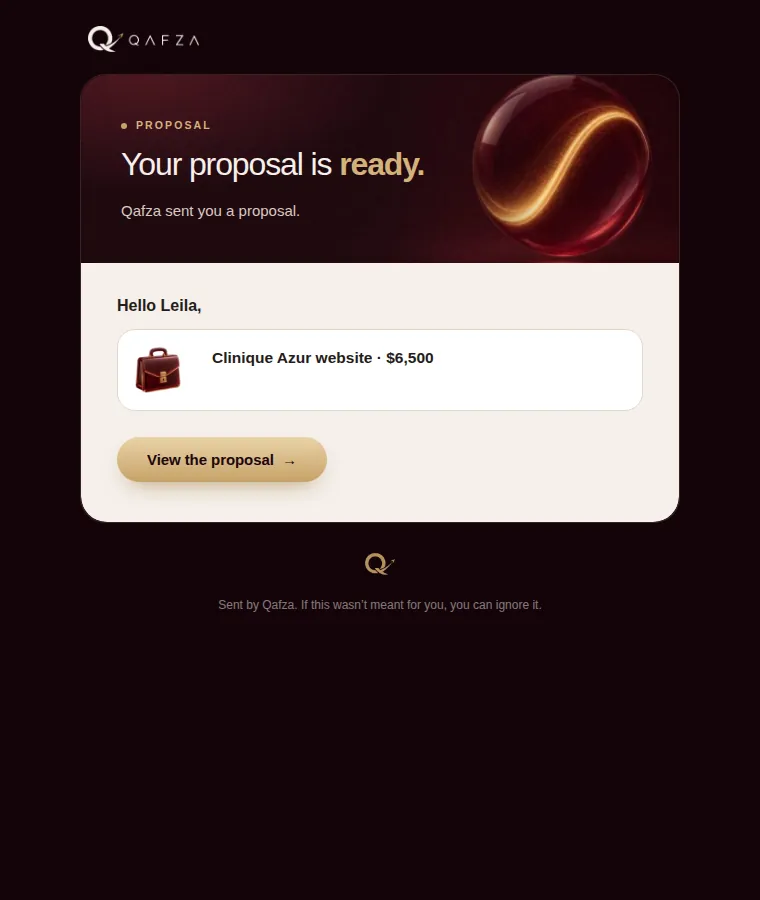
- Send. The client gets a branded email with a link. You can also copy the link or share it on WhatsApp.
- Follow its status: Draft → Sent → Viewed → Signed or Declined. You're notified when it's opened and when it's signed.
Online signing
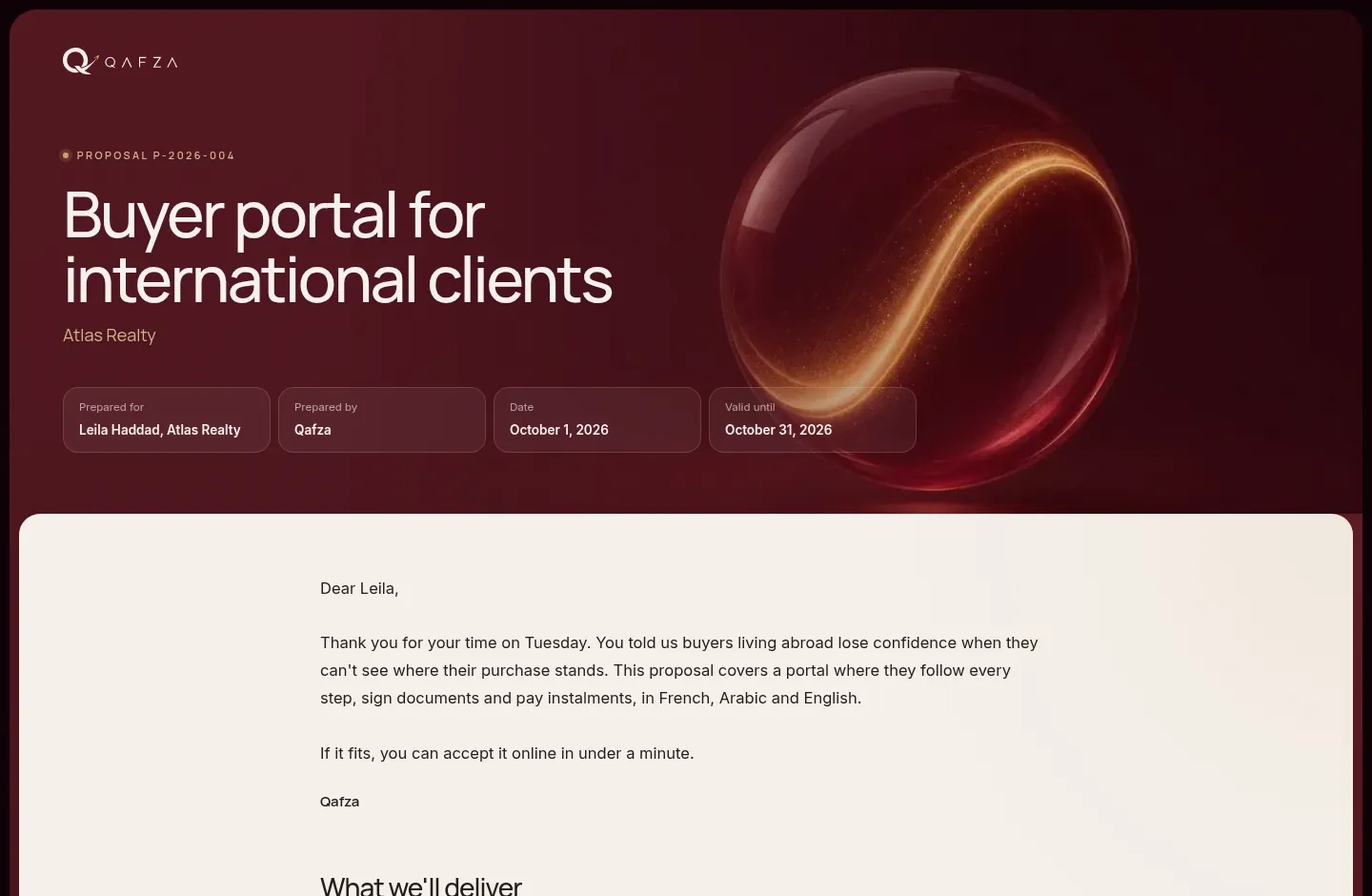
The client opens the proposal without an account, reads it, then signs: they type their name and role, and draw or type their signature. Their name, the time, their IP address and browser are kept with the signature. Signing marks the lead as won.
Money, clearly.

Invoices come from milestones, payments are recorded as they arrive, expenses are logged, and every project shows what it really earned after the team's time and costs.
Invoices
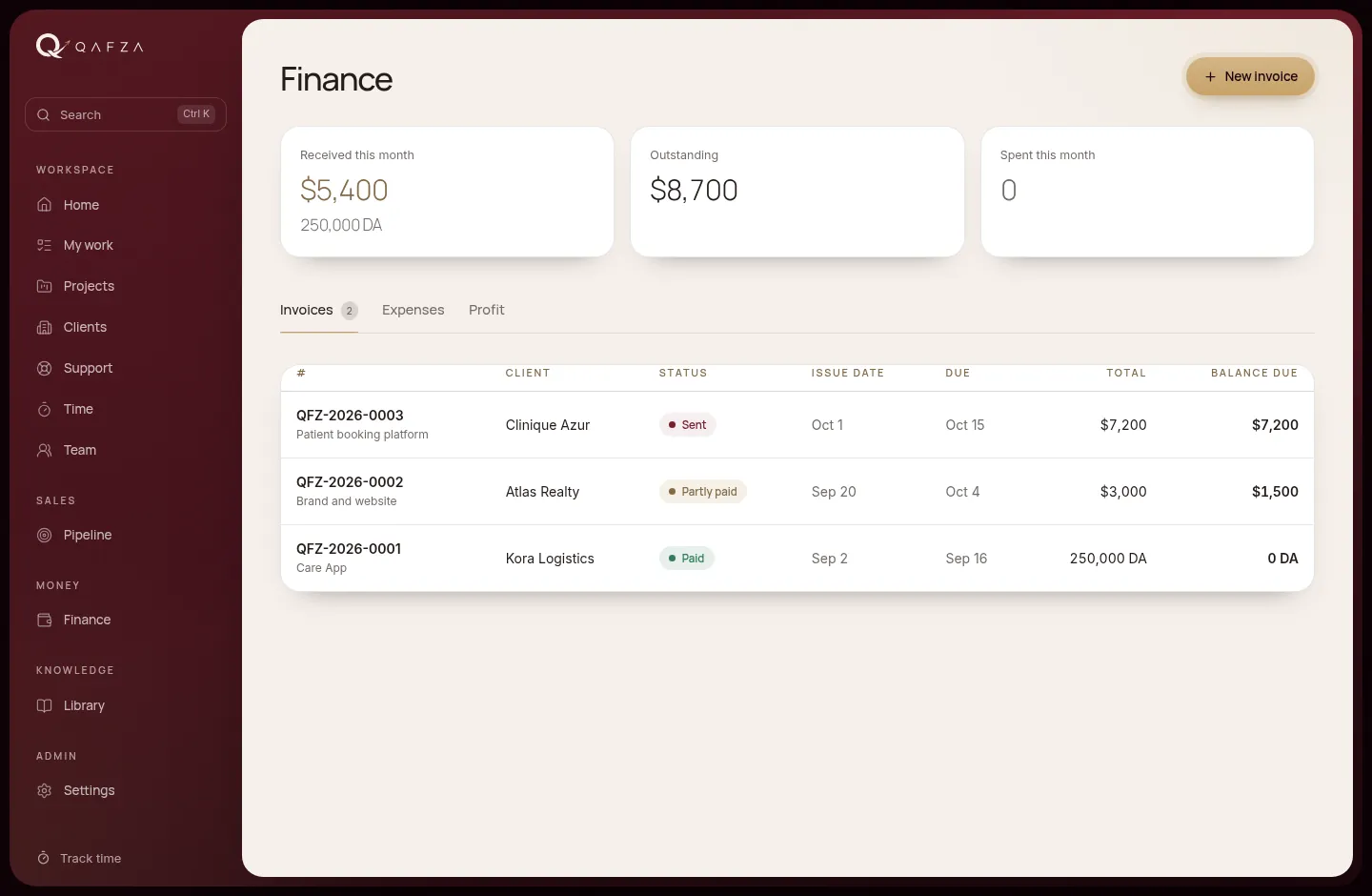
- Invoice a milestone from the project's Money tab: the amount is the milestone's share of the fee (for example 30%). Or create any invoice from Finance → New invoice.
- Check the items, currency and due date. Invoices are numbered automatically (QFZ-2026-0001…).
- Mark as sent. The client is notified and sees it in their space. Unpaid invoices past their due date turn Overdue by themselves.
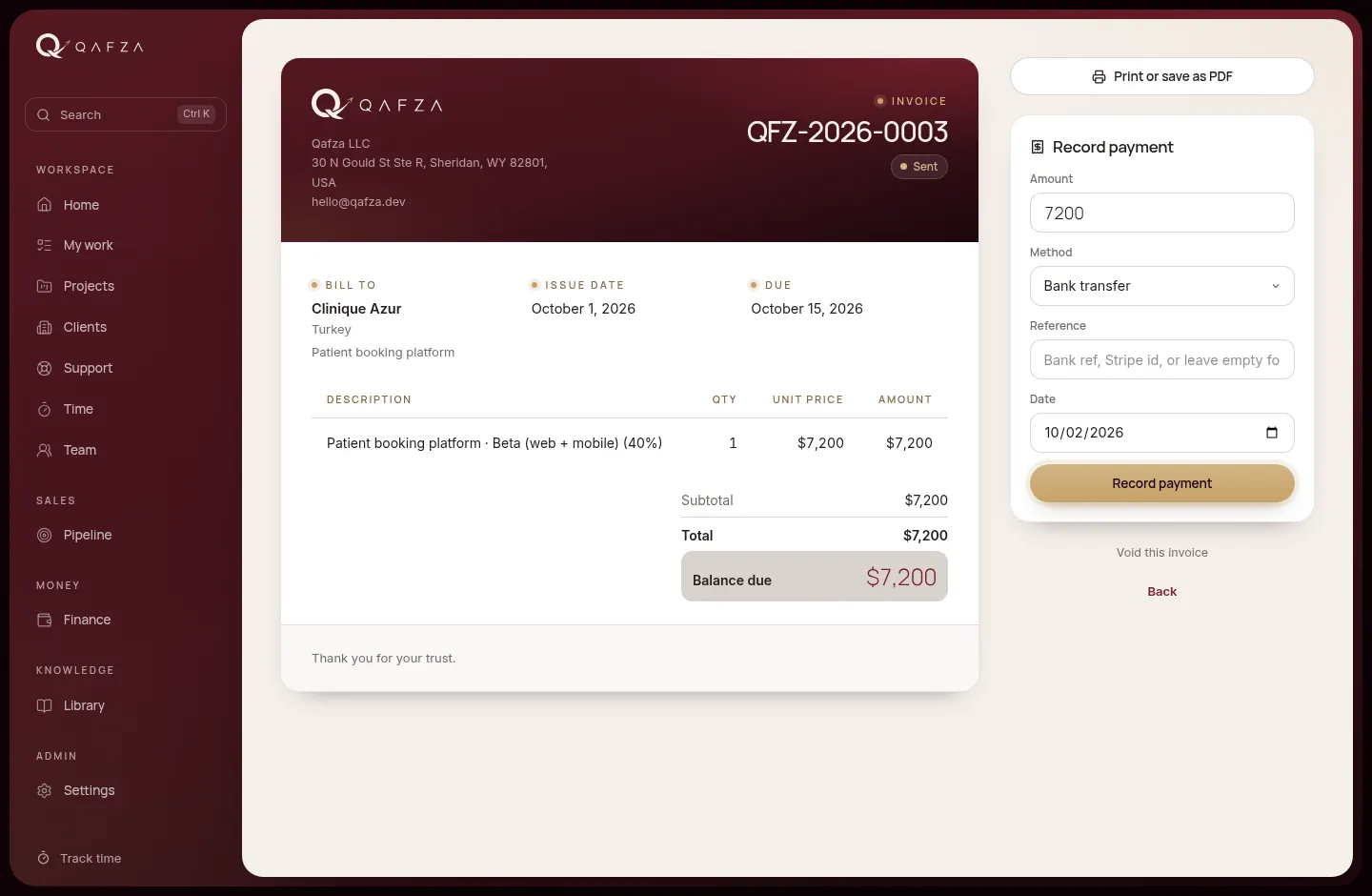
Payments and receipts
Press Record payment on an invoice: amount, method (bank transfer, card, cash, other), reference and date. Part payments make the invoice Partly paid; the full amount makes it Paid. Cash payments get a numbered receipt, as Algerian clients expect.
Expenses
Log what Qafza spends: contractors, software, hosting, ad spend and the rest, in any currency. Link an expense to a client or project, and tick Bill back to client for costs you pass on. Expenses linked to a project (and not billed back) reduce its profit.
Profit per project
The Profit tab answers the question that matters: which work actually makes money.
How profit is calculated
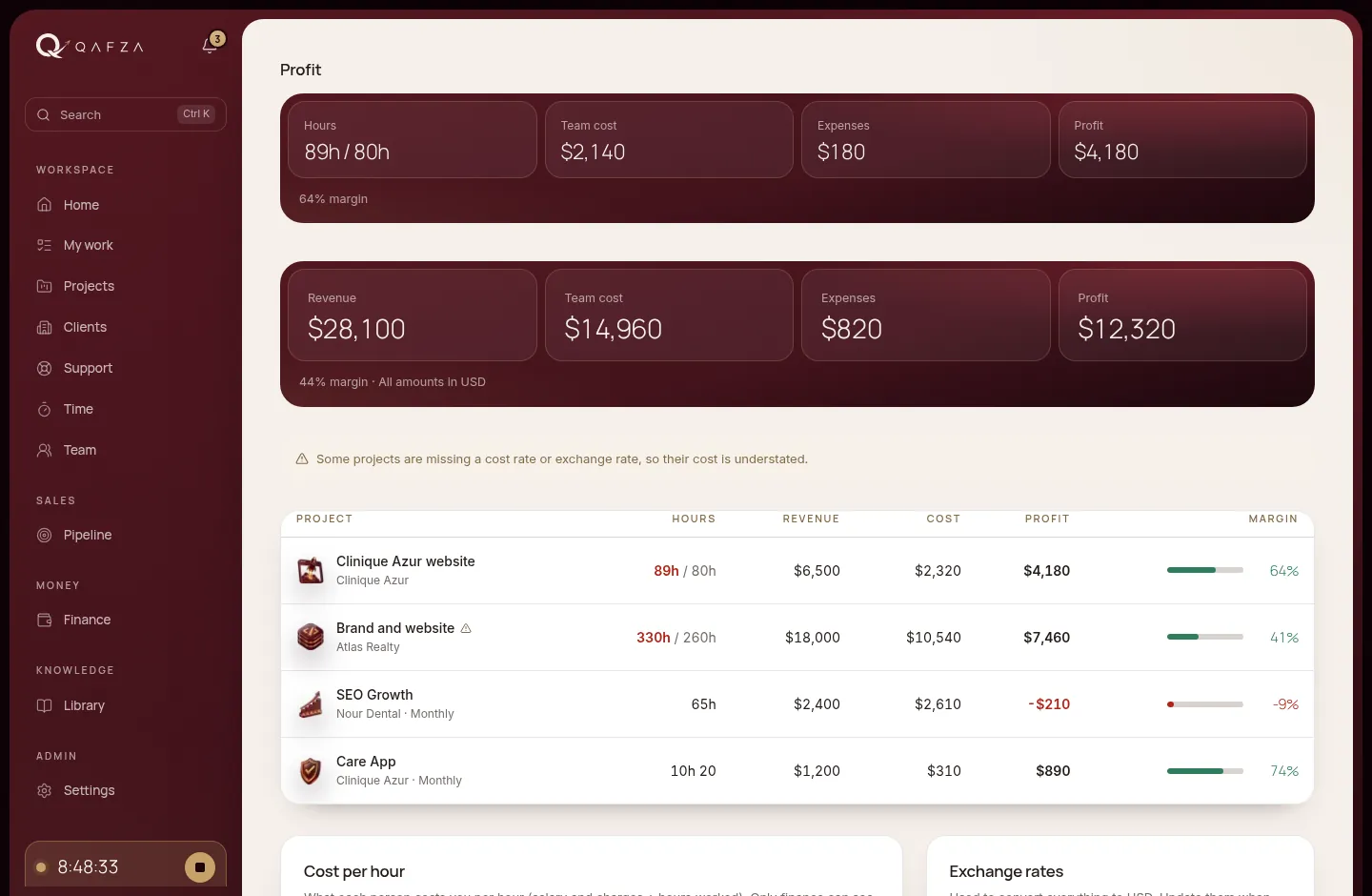
Two settings at the bottom of the tab make the numbers true:
For each person: salary and charges divided by hours worked, in their currency. Only finance can see these.
Typed as "1 USD = 134.5 DZD". Update them when rates move, so DZD salaries and USD fees compare correctly.
Running the workspace.

People, roles, documents, packages and branding. These pages are for the owner and admins, and they decide what everyone else sees.
Team and clients
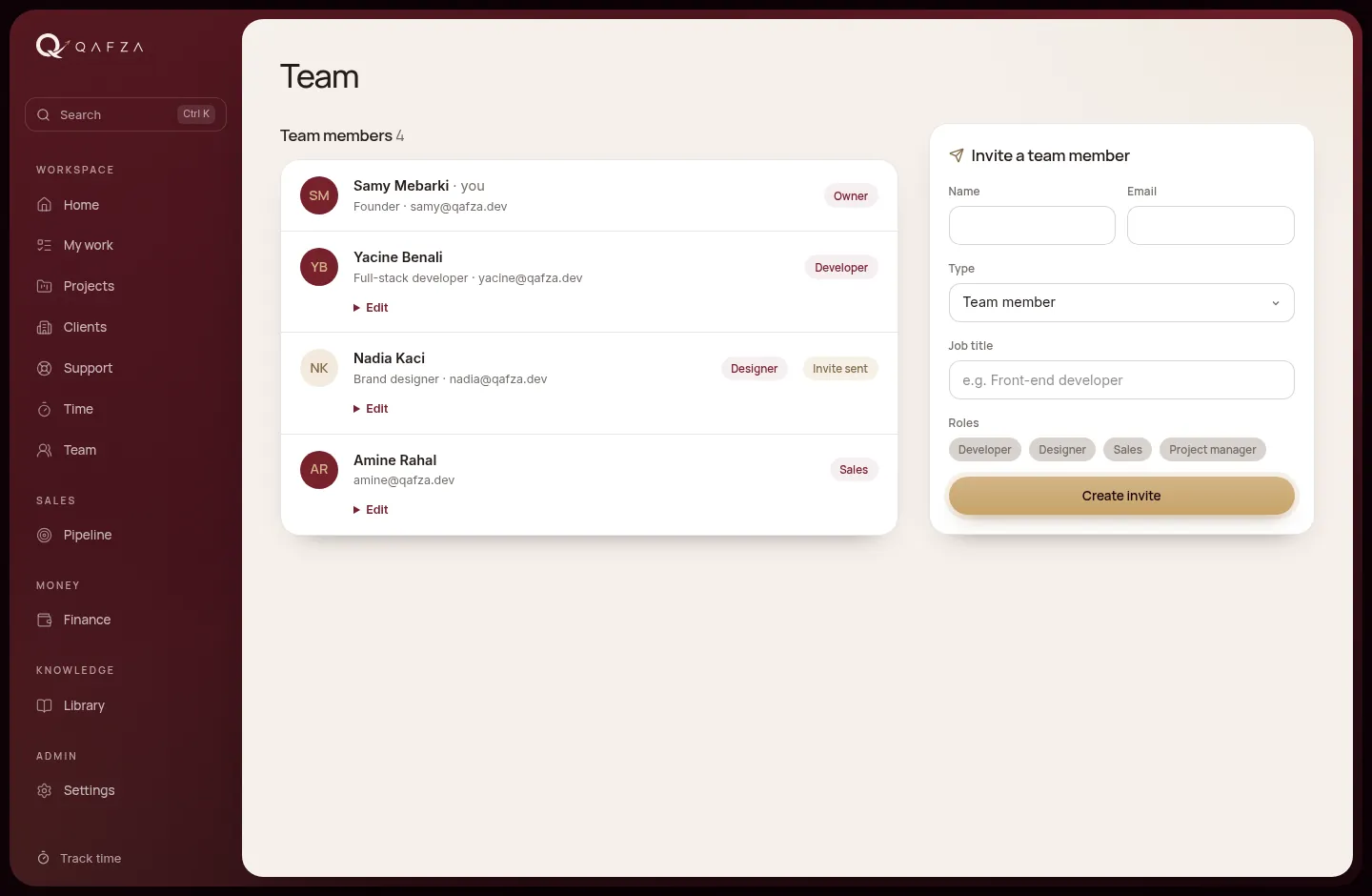
- Invite a team member from Team: name, email, type (team member, freelancer, partner), job title and roles.
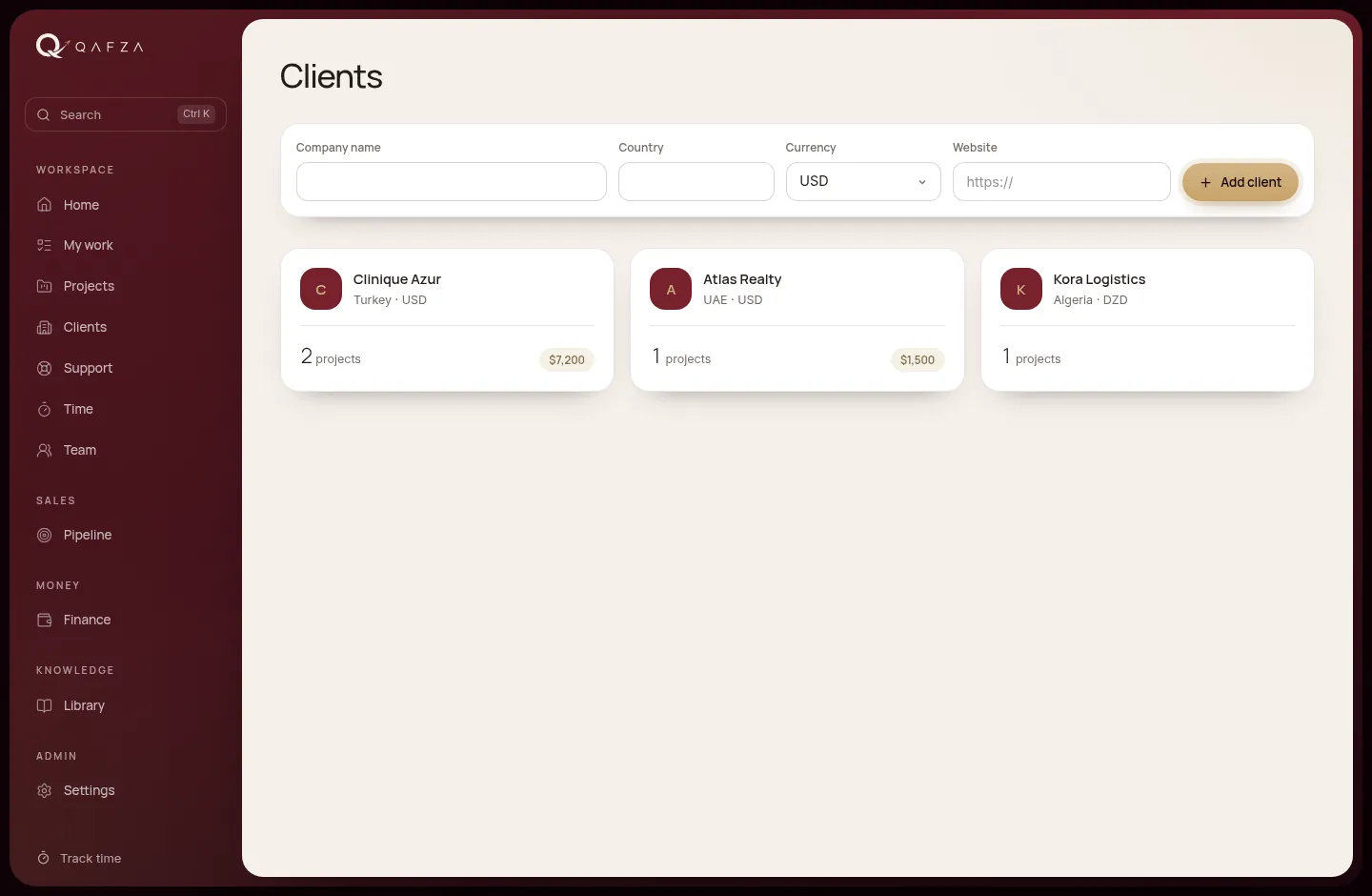
- Add a client from Clients with their company name, country, currency and website.
- Invite the client's people from the client's page. Tick Client admin for the person who approves work and sees invoices.
- Send the link. It is emailed automatically; you can also copy it and send it on WhatsApp. It works once.
Roles and permissions
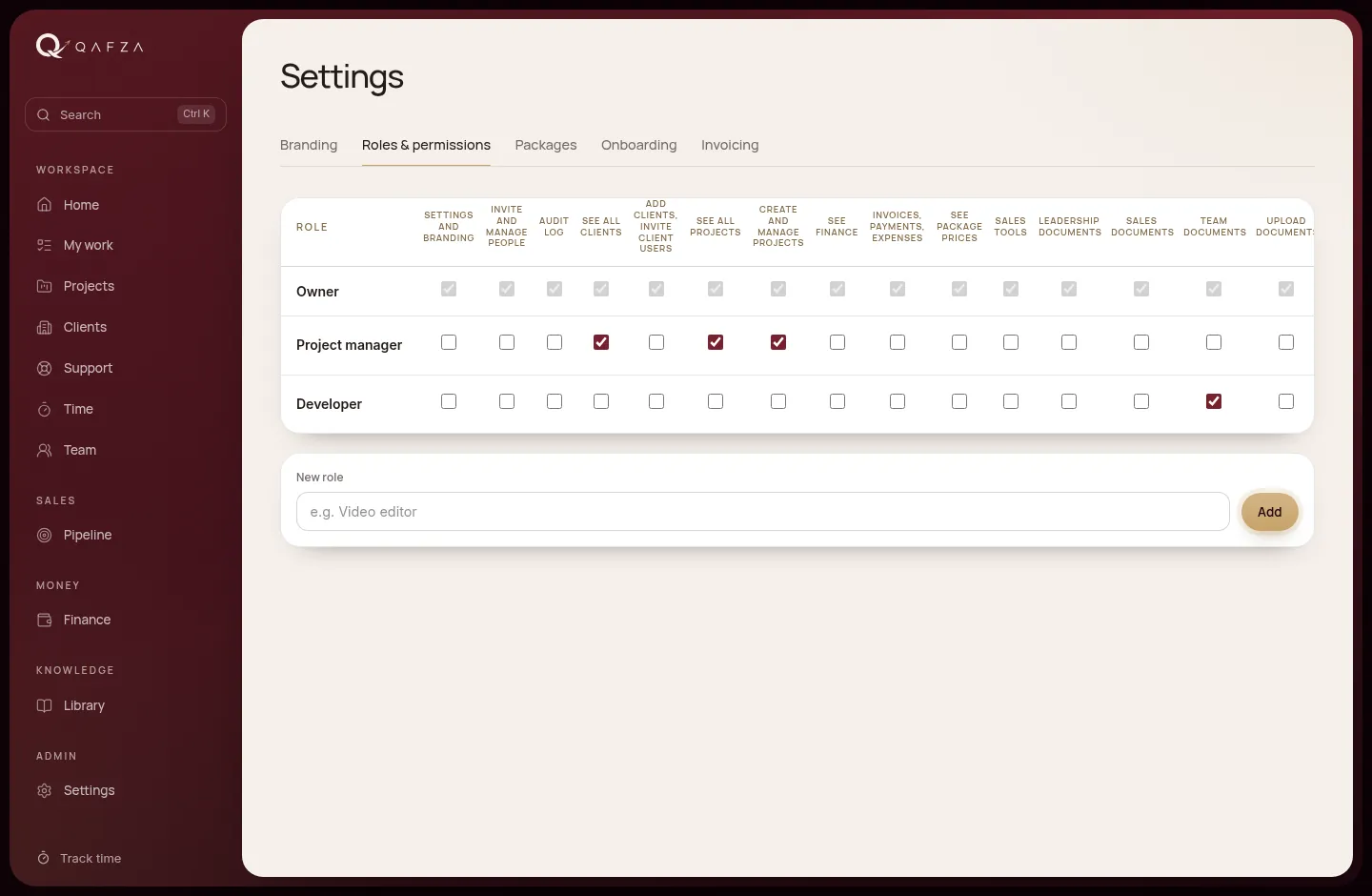
A role is a set of permissions. Qafza OS comes with the roles below; you can change any of them, or add your own, in Settings → Roles & permissions. A person can hold several roles. Only the owner can give the Owner role.
| Role | Projects | Clients | Sales | Prices | Finance | Team | Settings |
|---|---|---|---|---|---|---|---|
| Owner | All | All | ✓ | ✓ | ✓ | ✓ | ✓ |
| Admin | All | All | ✓ | ✓ | — | ✓ | ✓ |
| Project manager | All | All | — | — | — | ✓ | — |
| Sales | Assigned | All | ✓ | ✓ | — | — | — |
| Finance / accountant | Assigned | View | — | — | ✓ | — | — |
| Developer, Designer, SEO, Social, Ads, Writer, QA, Support | Assigned | — | — | — | — | — | — |
| Freelancer | Own tasks | — | — | — | — | — | — |
"Assigned" means the projects that person has been added to. "All" includes managing projects or clients; Finance roles can view clients but not edit them.
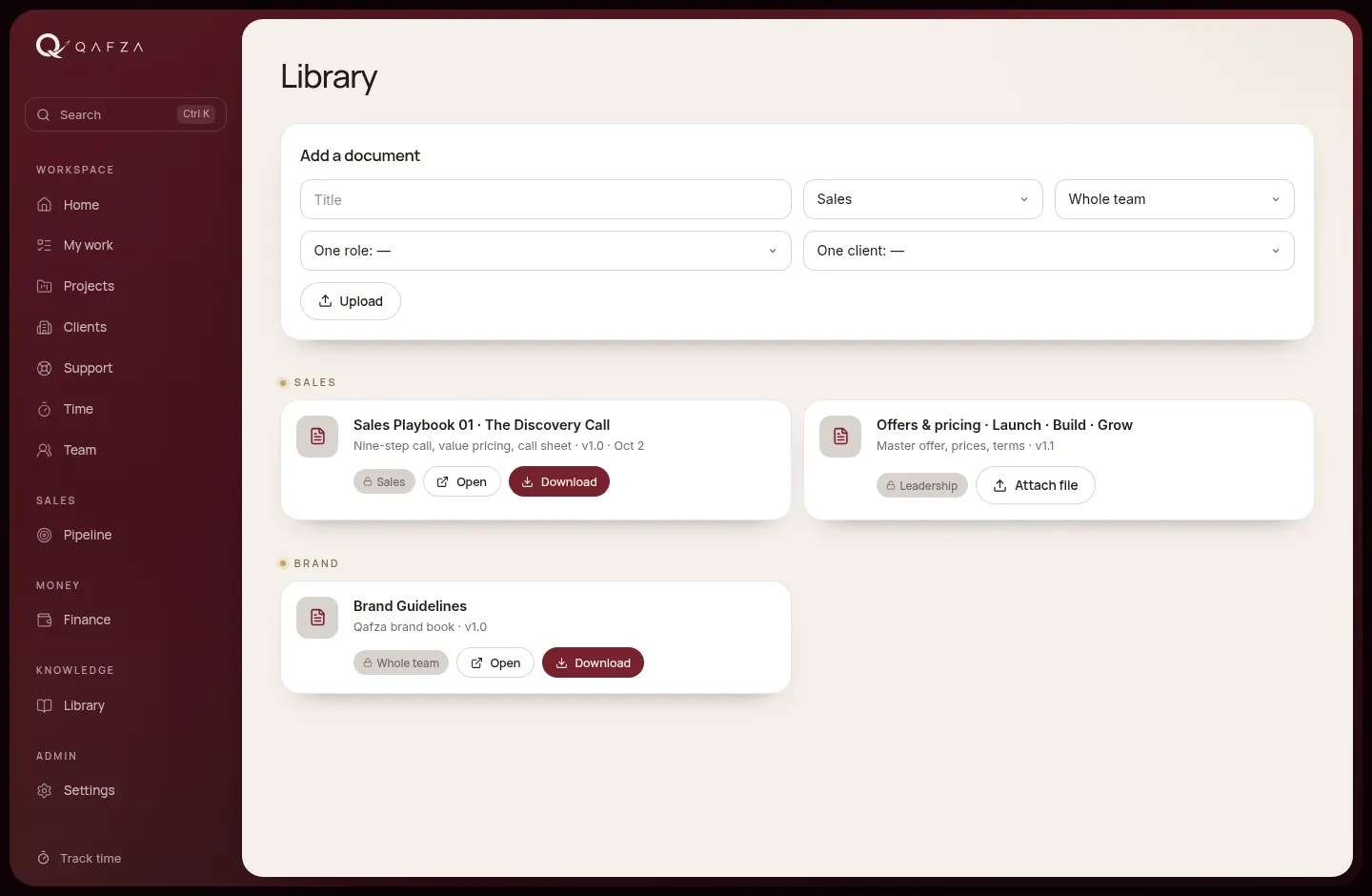
The library
The library holds Qafza's documents: playbooks, templates, offers, contracts. Every document has an access level, and people only see what their level allows: Owner only Leadership Sales Whole team One role Freelancers One client Everyone. Upload a file or link to one.
Settings
- Branding
- Workspace name, main and accent colours, logos for dark and light backgrounds, custom domain. The whole app, emails and invoices follow it.
- Roles & permissions
- The matrix of roles and what each can do. Add a new role for a new job.
- Packages
- Prices per package and currency (USD, DZD, EUR, TRY), and each Care plan's reply time and hours per month.
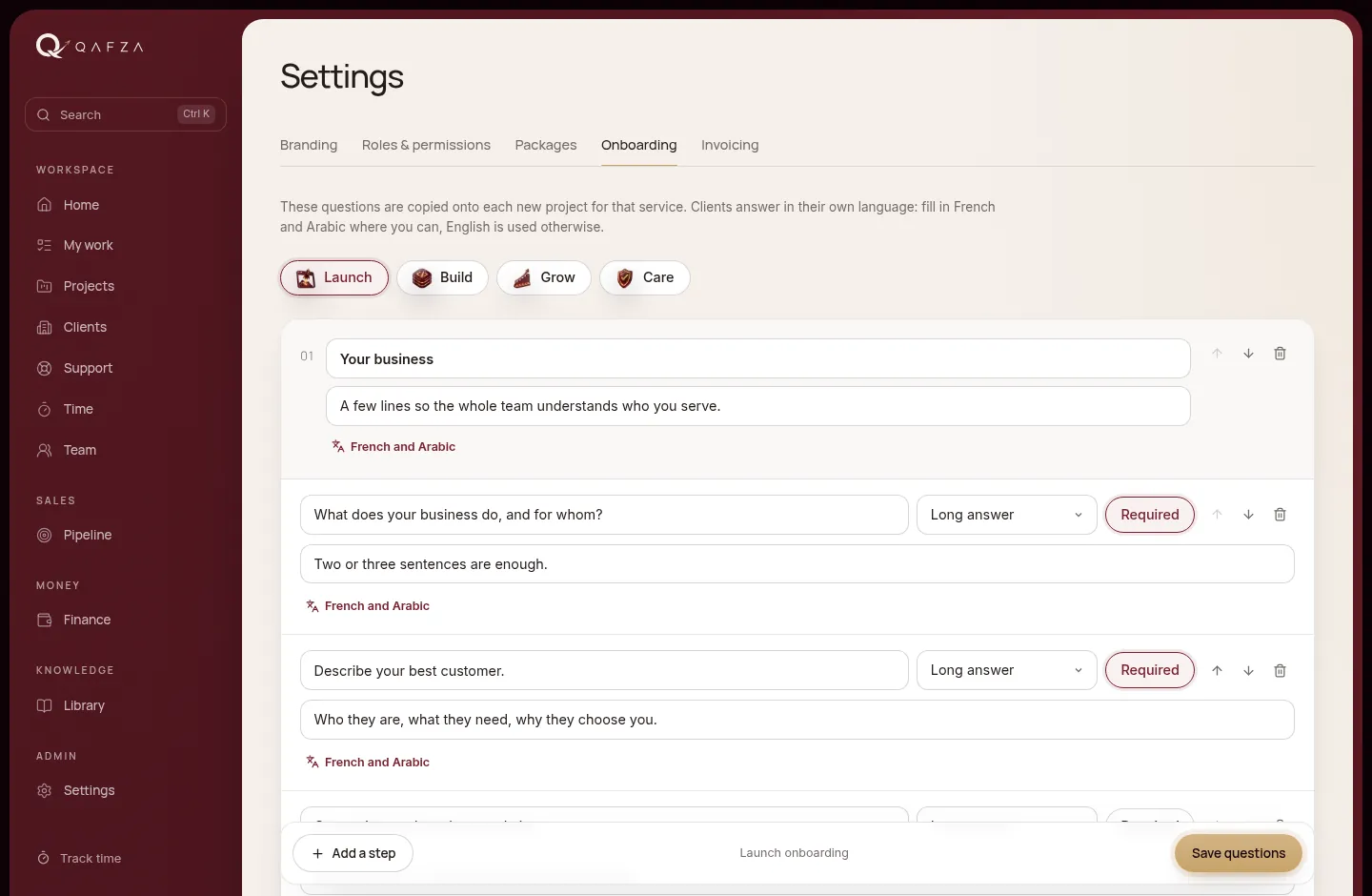
- Onboarding
- The questions each service's onboarding form asks, in English, French and Arabic. New projects copy the current questions.
- Invoicing
- Legal name, address, contact email, invoice prefix, payment terms in days, bank details and the footer line printed on every invoice.
Who sees what.

Access is checked by the database on every request, not just hidden in the menu. If a page isn't in your menu, it can't be opened with a link either.
| Area | Owner | Manager | Sales | Finance | Delivery | Freelancer | Client admin | Client member |
|---|---|---|---|---|---|---|---|---|
| Projects | All | All | Assigned | Assigned | Assigned | Own tasks | Theirs | Theirs |
| Internal tasks, updates, files | ✓ | ✓ | Assigned | Assigned | Assigned | — | — | — |
| Approvals and change decisions | ✓ | ✓ | — | — | — | — | ✓ | ✓ |
| Pipeline and proposals | ✓ | — | ✓ | — | — | — | — | — |
| Invoices | ✓ | — | — | ✓ | — | — | Theirs | — |
| Fees, profit, cost rates | ✓ | — | — | ✓ | — | — | — | — |
| Time entries | All | All | Own | All | Own | Own | — | — |
| Team workload | ✓ | ✓ | — | — | — | — | — | — |
| Support tickets | All | All | All | All | Assigned | — | Theirs | Theirs |
| Settings | ✓ | — | — | — | — | — | — | — |
"Delivery" is developers, designers, SEO, social, ads, writers, QA and support. "Assigned" means projects they've been added to. Admins see everything except finance. Roles can be changed in Settings, so your workspace may differ.
Reference.

Statuses
| Item | Statuses, in order |
|---|---|
| Project | Planning Active On hold Completed Cancelled |
| Task | To do In progress In review Waiting on client Done |
| Milestone | Upcoming In progress Awaiting approval Approved |
| Change request | Waiting for a quote Waiting for your decision Approved Declined |
| Invoice | Draft Sent Partly paid Paid Overdue Void |
| Ticket | Open In progress Waiting on client Resolved Closed |
| Proposal | Draft Sent Viewed Signed Declined |
| Lead | New Contacted Call booked Proposal sent Won Lost |
Shortcuts and formats
- Ctrl K · ⌘ K
- Open search from anywhere. ↑ ↓ to move, Enter to open, Esc to close.
- Time
- 1:30 = 1 hour 30 · 45m = 45 minutes · 2h = 2 hours · 1.5 = 1 hour 30 · 90 = 90 minutes.
- Task estimate
- Hours, as a number: 4 or 2.5.
- Working days
- Sunday to Thursday, Algiers time. Reply deadlines count only these.
- Revision rounds
- 2 per stage, unless the package says otherwise.
- Ticket numbers
- Type #14 in search to open ticket 14.
Questions
My invitation link says it has expired.
Links work once. Ask the person who invited you to send a new invite from Team (or the client's page). Your account and data are kept.
I can't see a project my colleague can see.
You see the projects you've been added to. Ask a manager to add you from the project's Team tab.
I'm not getting push notifications on my iPhone.
Push only works from the installed app. In Safari: Share → Add to Home Screen, open Qafza from the icon, then bell → This device → Turn on. If it says "Blocked in browser settings", allow notifications for Qafza in iPhone Settings.
Too many emails.
Open the bell and set Email me to Daily summary or Never. The bell inside the app still shows everything.
I forgot to start the timer.
Open Time and log the hours by hand, with the right day. You can edit or remove any of your own entries.
Where do passwords for client accounts go?
Never in Qafza OS: not in tasks, updates, files or the onboarding form. Use the team password manager and link to it.
How do I sign out on my phone?
Tap your initials at the top right. The menu has your name, the language switch and Sign out.